Voice Typing Like a Pro: 15 Tips to Dictate Faster, More Accurately, and With Better Results
Last updated: August 2026 | Reading time: 13 minutes
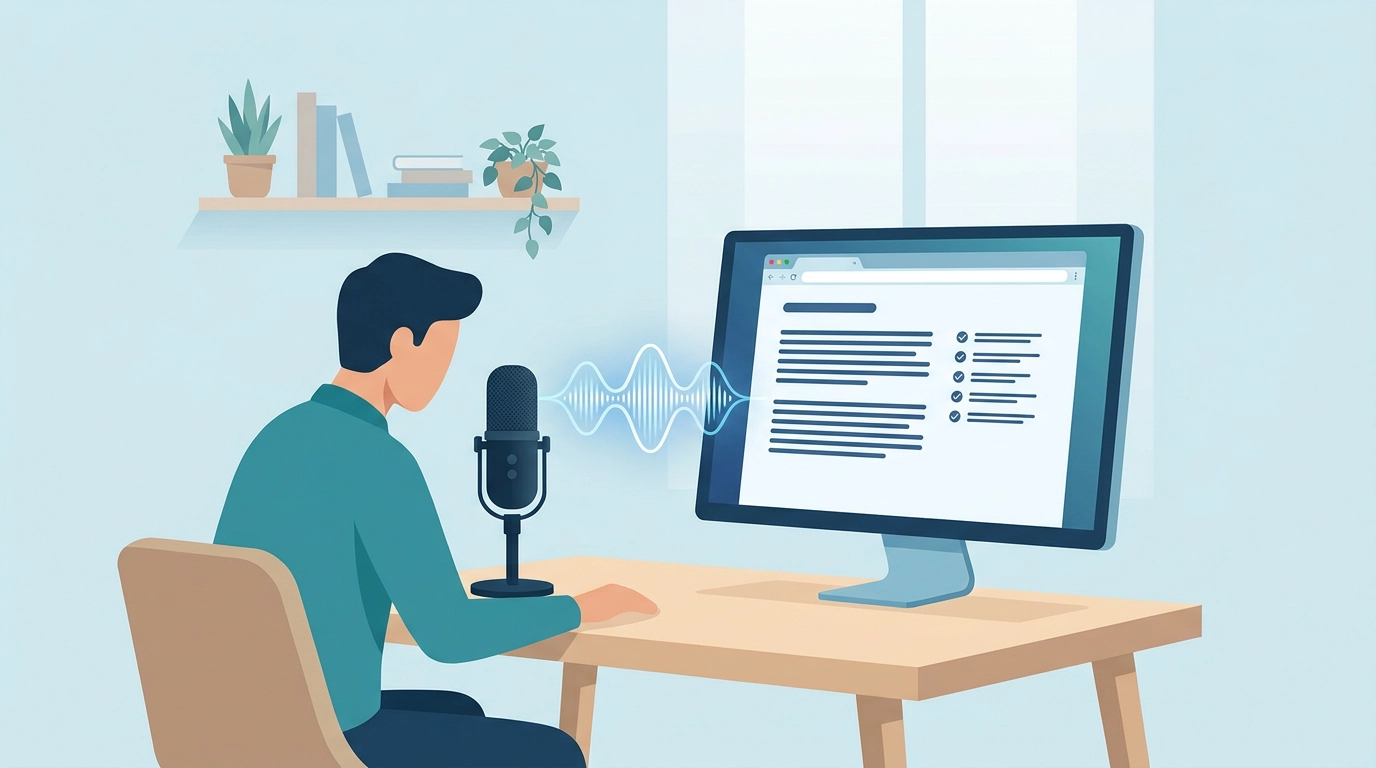
Most people try voice typing once, get back a garbled block of text with no punctuation and a few embarrassing mistakes, and quietly go back to their keyboard. That's a shame — because the difference between "voice typing is useless" and "voice typing is the fastest way I write" almost always comes down to a handful of small, learnable habits.
The upside is real. The average person types around 40 words per minute but speaks comfortably at about 150 words per minute, and a Stanford study found voice input is roughly three times faster than typing — and more accurate than a touchscreen keyboard, not less. But raw speed only pays off if what lands on the page is clean and correct.
This guide collects the voice typing tips that actually move the needle, grouped into five areas: your microphone, your environment, how you speak, how you handle punctuation, and how you build a workflow. Whether you're looking for voice typing tips for beginners or voice typing speed tips for professionals, work through these and you'll dictate faster, with better accuracy, and with far less cleanup afterward.
A quick note on scope: this is written for desktop dictation — a Chrome extension like VoxWrite running at your desk or on a laptop, typing into any browser text field. That's where a real microphone and a quiet room let you get professional results.
Part 1: Get Your Microphone Right
Everything downstream depends on the quality of the audio going in. Bad audio is the single most common reason people conclude voice typing "doesn't work." Fix this first and half your accuracy problems disappear.
Tip 1: Use a real microphone, not your laptop's built-in one
Your laptop's built-in microphone is designed for calls, not clean dictation. It sits far from your mouth, picks up keyboard clatter and room echo, and produces a weak, noisy signal that transcription models have to guess at.
The best microphone setup for voice typing doesn't require studio gear. A dedicated cardioid USB microphone or a good headset mic — in the $40–60 range — is a dramatic upgrade. A cardioid pattern captures sound from in front of it and rejects sound from the sides and behind, so your voice comes through clearly while the room fades back. If you already own decent headphones with an inline mic, that alone beats the laptop.
Tip 2: Position the mic correctly
Placement matters as much as the hardware. Keep the microphone roughly 15–20 cm from your mouth — about a hand's width — and angle it slightly off to the side rather than pointing straight at your lips. That off-axis angle stops plosive sounds (the burst of air on "p" and "b") from popping and distorting the signal. A pop filter — the little mesh screen you see in front of studio mics — helps even more if you have one.
Too close and every breath booms; too far and the room noise competes with your voice. A consistent, comfortable distance gives the transcriber the clean, steady signal it needs.
Tip 3: Do a ten-second test before real work
Before you dictate anything that matters, record a short test sentence and read it back. You're checking two things: is your voice clear and free of popping, and is the background quiet? Ten seconds now saves you from discovering halfway through a long entry that the mic was muffled or picking up a fan. With VoxWrite you can review captured audio and text in the manage recordings documentation.
Part 2: Optimize Your Environment
A great microphone in a noisy room is still a noisy signal. The room is part of your setup.
Tip 4: Dictate somewhere quiet
Background noise is transcription's worst enemy. A TV in the next room, a café's chatter, an air conditioner's hum — all of it competes with your voice and forces the model to guess. This is one of the most overlooked ways to improve voice dictation accuracy: simply move to a quiet room, or wait for the dishwasher to finish. If you can't control the noise, a cardioid mic close to your mouth (Tips 1–2) is your best defense.
Tip 5: Tame echo and hard surfaces
A room with bare walls, big windows, and hard floors bounces your voice around, and that reverb smears the audio the model hears. You don't need acoustic foam — soft furnishings do the job. A rug, curtains, a bookshelf, even dictating with your back to a wall of books rather than a bare wall, all cut reflections and sharpen the signal.
Tip 6: Silence notifications and interruptions
Productivity dictation flows best in an unbroken stream of thought. A Slack ping or a phone buzz mid-sentence breaks your train and often ends up transcribed as a confused half-thought. Put your desktop in do-not-disturb before a longer dictation session — it protects both your focus and your transcript.
Part 3: Speak So the Machine Understands
Once the audio is clean, how you speak is the next multiplier. These are the dictation techniques for faster writing that separate frustrating sessions from smooth ones.
Tip 7: Speak in complete thoughts, not word by word
The instinct when you want accuracy is to slow down and enunciate each... word... separately. Don't. Modern speech models — and especially AI-cleanup tools — use the surrounding words as context to resolve ambiguity. Chopping your speech into isolated words strips away that context and actually lowers accuracy. Speak in natural phrases and full sentences, the way you'd explain something to a colleague. The model has more to work with, and you go faster.
Tip 8: Keep a steady, natural pace
Racing produces slurred word endings; trailing off makes the last few words of a sentence drop out. A steady, conversational pace — not a performance, not a mumble — is the sweet spot. If you find yourself making the same class of error repeatedly, it's usually pace: you're either rushing the start or swallowing the end of sentences. This is the most reliable way to reduce errors in voice to text dictation without touching your hardware.
Tip 9: Don't edit while you speak
The biggest habit-killer is stopping to fix things mid-flow — restarting sentences, second-guessing a word, muttering "no wait." With an AI-cleanup tool, you don't need to. Say the awkward thing, correct yourself out loud ("scratch that, what I mean is…"), and keep going. VoxWrite's cleanup layer removes the false starts and self-corrections for you. Letting it flow is faster and produces a cleaner result, because you're not breaking the model's context every few seconds.
Tip 10: Give the transcriber hints for names and jargon
Unusual words are where even good setups stumble: personal names, company names, acronyms, medical or legal terms, product names the model has never encountered. Rather than fighting the same misspelling every time, tell the transcriber how to spell them. VoxWrite supports this directly — see the custom audio prompts documentation, which lets you bias transcription with spelling and formatting hints so recurring terms come out right the first time.
Part 4: Handle Punctuation the Modern Way
Punctuation is where the old world of dictation and the new one diverge most sharply — and it's the source of a lot of confusion.
Tip 11: Know whether your tool needs punctuation commands
With a traditional dictation engine — including Google Docs voice typing — you have to say your punctuation out loud. You speak "comma," "period," "question mark," "new paragraph," and the engine inserts the symbol. Learning these voice typing commands for punctuation is essential with those tools, and forgetting them leaves you with an unreadable wall of text.
AI-powered tools work differently. VoxWrite's cleanup layer reads your spoken sentence and adds punctuation, capitalization, and paragraph breaks automatically — you just talk, and the structure appears. So the first best practice is simply knowing which kind of tool you have. If it's an AI-cleanup tool, drop the punctuation commands entirely; saying "comma" out loud will just get transcribed as the word "comma."
Tip 12: Let AI cleanup do the formatting
Once you're not narrating punctuation, you can go further and let the AI handle structure too — bullet lists, headings, greeting-and-signoff for emails, and so on. Instead of manually formatting after the fact, you speak naturally and get formatted output. This is the single biggest quality-of-life difference between raw transcription and modern speech-to-text, and it's covered in depth in our guide to voice typing with templates for formatted output.
Part 5: Build a Workflow That Sticks
The last set of tips is about turning voice typing from a novelty you occasionally reach for into a voice typing workflow for productivity you rely on daily.
Tip 13: Bind a one-key recording hotkey
Friction is the enemy of any habit. If starting a recording takes three clicks, you won't do it for quick tasks — and quick tasks are where dictation shines. A single-key shortcut lets you start the instant a thought lands. Configure it in the hotkeys documentation. Prefer to click? VoxWrite's floating button (the "bubble") gives you an on-screen control — set it up via the bubble settings documentation. There's a full walkthrough of every trigger in the start recording documentation.
Tip 14: Save custom rules per site so cleanup is automatic
This is the pro move. VoxWrite lets you save custom rules per website, so the cleanup and formatting you want happen automatically wherever you dictate — professional tone in Gmail, tight bullet points in Notion, first-person prose in your journal. Set the rule once and every future dictation on that site comes back already shaped correctly, with zero manual editing. Setup is in the custom rules documentation, and you can see the idea applied to real writing in our guide to turning casual speech into professional text.
Tip 15: Review the last 10% — don't trust blindly
No dictation tool is perfect, and the fastest writers aren't the ones who never proofread — they're the ones who let the tool do 90% and give the result a quick scan for the last 10%. Watch especially for homophones ("their/there"), misheard proper nouns, and the rare sentence where the AI guessed wrong on your meaning. A five-second review keeps your output genuinely professional. Getting comfortable with this "speak, then skim" rhythm is how you truly get better at voice dictation over time.
The Fastest Way to Improve: A Quick Checklist
If you only remember a handful of things, remember these — they're the voice typing mistakes to avoid that trip up almost everyone:
| Common mistake | What to do instead |
|---|---|
| Using the laptop's built-in mic | Use a cardioid USB mic or headset, a hand's width away |
| Dictating in a noisy or echoey room | Find a quiet space with soft furnishings |
| Speaking word... by... word | Speak in complete, natural thoughts |
| Rushing or trailing off at sentence ends | Keep a steady, conversational pace |
| Stopping to edit mid-sentence | Let it flow; AI cleanup fixes the mess |
| Saying "comma / period" with an AI tool | Just talk — the AI punctuates for you |
| Fighting the same misspelled name repeatedly | Add spelling hints via custom audio prompts |
| Reformatting output by hand every time | Save a custom rule per website |
| Trusting the transcript blindly | Skim the last 10% before you send |
Why AI Cleanup Changes the Rules
It's worth stepping back on one point, because it reframes half the "tips" you'll find in older guides. A lot of classic voice typing advice — narrate every comma, avoid contractions, speak in a robotic monotone, train a voice profile for weeks — exists because early dictation engines were fragile. They transcribed exactly what they heard and nothing more.
Modern AI-cleanup tools remove most of that burden. Because a language model rereads your transcript, it can add punctuation, fix run-on sentences, remove filler like "um" and "uh," repair a misheard word from context, and shape the result into the format you asked for. That means your job shifts from operating the machine to simply speaking clearly. Most of the tips above — good mic, quiet room, natural pace, full thoughts — are really just about handing the AI a clean signal so it can do the rest.
VoxWrite is built on exactly this two-layer model: accurate transcription first, then an AI cleanup pass tuned by rules you control, running directly in the browser where you already work. If you want the full picture of what that removes from your workflow, our deep-dive on removing filler words from text covers the cleanup layer in detail, and our comparison of the best speech-to-text Chrome extensions shows how the main options handle it.
Getting Set Up
If you're starting from scratch, the full path is short. Install VoxWrite from the Chrome Web Store or the Edge Add-ons Store (it runs on Chrome, Edge, and Brave on desktop), grant the one-time microphone permission covered in the microphone access documentation, set a recording hotkey, and you're dictating. For the boundaries of what the extension does and doesn't support, see the constraints documentation.
Frequently Asked Questions
What are the best voice typing tips for beginners?
Start with the input: a decent microphone a hand's width from your mouth, a quiet room, and speaking in full thoughts rather than word by word. With a traditional engine you also have to say punctuation aloud, but with an AI-cleanup tool like VoxWrite the AI punctuates and removes filler for you — so you can just talk. Keep passages short at first and resist editing mid-sentence.
How do I improve voice dictation accuracy?
Fix the audio first — a cardioid USB mic or headset in a quiet, non-echoey room — then speak clearly at a steady pace. For names and jargon that get misheard, add spelling hints via custom audio prompts. An AI-cleanup layer catches many context errors that raw transcription misses.
Do I need to say punctuation commands when voice typing?
Only with traditional engines like Google Docs voice typing, where you say "comma" and "new paragraph" out loud. AI-powered tools like VoxWrite add punctuation automatically from your spoken sentence — so with those, skip the commands entirely, or the word "comma" will just appear in your text.
What is the best microphone setup for voice typing?
A cardioid USB microphone or quality headset mic, about 15–20 cm from your mouth and angled slightly off-axis so plosives don't pop; a pop filter helps. A dedicated mic rejects room noise far better than a laptop's built-in one, which directly reduces errors. A $40–60 USB mic is a big upgrade — you don't need studio gear.
Why does my voice typing keep making mistakes?
Usually one of three things: a weak or noisy signal, speaking too fast or trailing off, or unusual words the model hasn't seen. Fix the mic and room, slow to a steady pace, and add spelling hints for problem words. VoxWrite's AI pass also corrects many context errors automatically.
How can I dictate faster and be more productive?
Remove friction rather than talking faster: bind a one-key recording hotkey, speak in complete thoughts so the AI can punctuate well, and save custom rules per site so formatting is automatic. Dictating at ~150 wpm with cleanup handled for you is where the productivity gain lives.
Does VoxWrite work for voice typing on a phone?
No — VoxWrite is a desktop browser extension for Chrome, Edge, and Brave, with no mobile app. These best practices assume a desk or laptop, where a proper mic and quiet room deliver professional-quality results.
Conclusion: The Habits Compound
Voice typing has a steep first impression and a gentle learning curve. The people who give up do so in the first five minutes, on a bad mic in a noisy room, narrating commas into a tool that never needed them. The people who stick with it discover that a clean signal plus a natural speaking style plus an AI cleanup layer produces writing faster than their hands ever could — and often cleaner, too.
Work through the five areas: get the mic right, quiet the room, speak in full thoughts at a steady pace, let the AI handle punctuation and formatting, and build a low-friction workflow. None of it is hard, and every tip compounds with the others. Do them together and "voice typing doesn't work for me" turns into "I don't know how I wrote without it."
Ready to put these tips into practice?
Try VoxWrite Free for 7 Days — No credit card required. Desktop Chrome, Edge, or Brave only; works in any browser text field.
Related Articles
- Voice Typing With Templates: Dictate Perfectly Formatted Output
- The Complete Guide to Removing Filler Words From Text
- Turn Casual Speech Into Professional Text With AI
- Google Docs Voice Typing Not Working? A Better Alternative
- Best Speech-to-Text Chrome Extensions Compared
About the Author: This guide was created by the VoxWrite team.
Last Updated: July 2026