
How to Set Up Custom Audio Prompts
Custom Rules transform your text after it's transcribed. Audio Prompts work one step earlier—they help VoxWrite get the transcription itself right.
An Audio Prompt is a short hint that is sent to the OpenAI transcription model together with your audio. The model uses it to spell tricky words correctly and to follow the punctuation and casing style you want.
What Are Audio Prompts Good For?
- 🔤 Spelling — force correct spelling of names, brands, products, projects, people, and acronyms
- 🧪 Technical & domain terms — make sure industry jargon is transcribed accurately
- ✏️ Punctuation & casing — give a sample sentence in your preferred style to nudge the output
Example: If you frequently dictate the project name "VoxWrite" or a colleague's name "Aleksei", add them to an audio prompt so they're never misheard as "Vox Right" or "Alexey".
⚠️ OpenAI transcription only (local mode). When you use your own API keys, audio prompts apply only if the selected audio model is from OpenAI (GPT-4o Mini Transcribe, GPT-4o Transcribe, or Whisper-1). Gemini transcription models ignore them. On a VoxWrite subscription, the prompt is always forwarded and applied by the server.
Where to Find Audio Prompts
Open Options → Models tab and scroll to the "Custom Audio Prompts" section. It sits just below your Custom Rules.
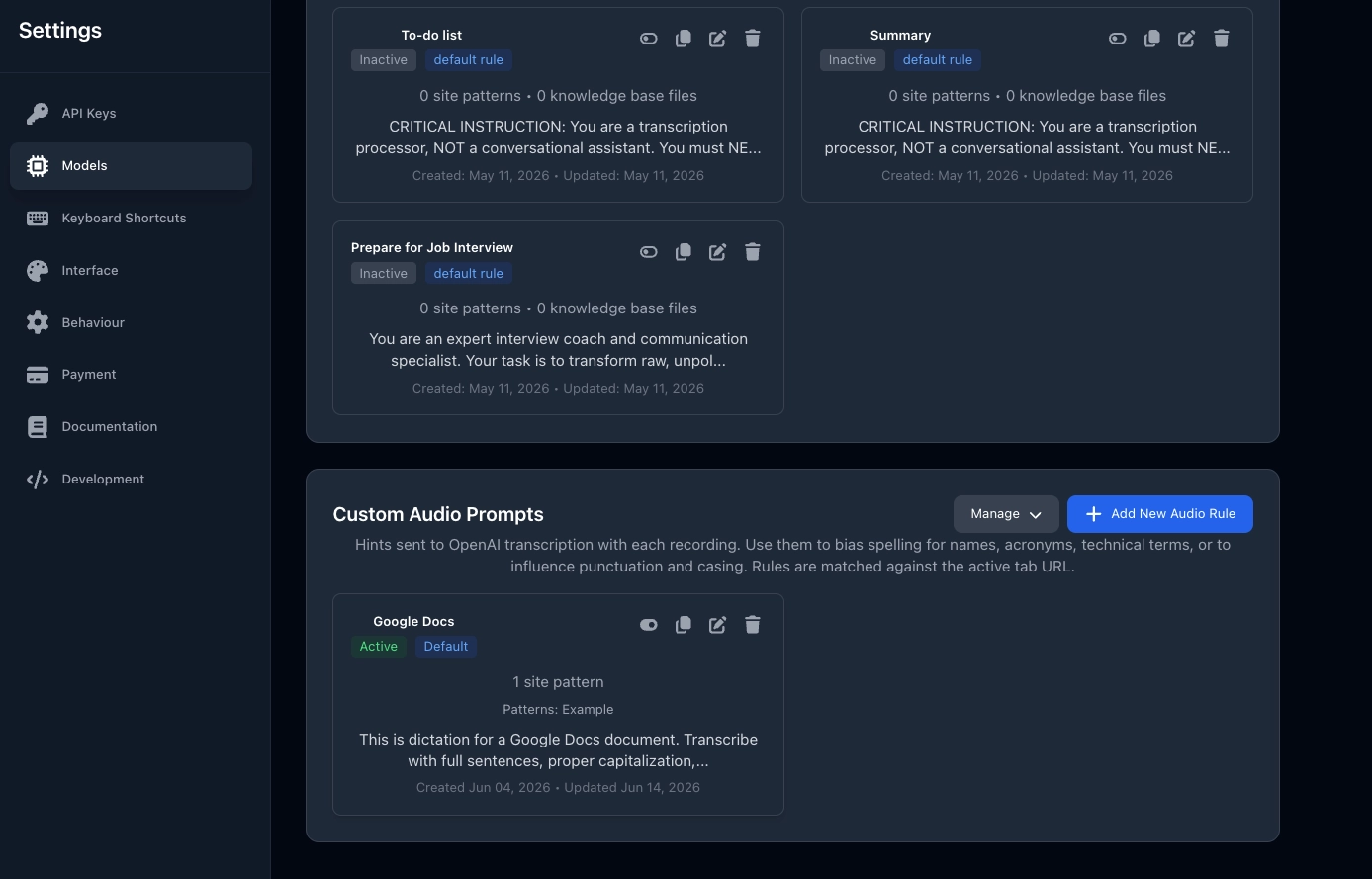
The section toolbar gives you:
| Button | What It Does |
|---|---|
| Add New Audio Rule | Open the form to create a new audio prompt |
| Manage -> Export | Download all your audio rules as a JSON file |
| Manage -> Import | Load audio rules from a JSON file (you'll be asked before overwriting any that already exist) |
| Manage -> Restore Defaults | Re-add or reset the built-in default audio rule |
VoxWrite ships with a built-in default audio rule so you have a working example to start from. If your list is ever empty, click Restore Defaults to bring it back, or Add New Audio Rule to create your own.
Creating an Audio Rule
Click "Add New Audio Rule" to open the form.
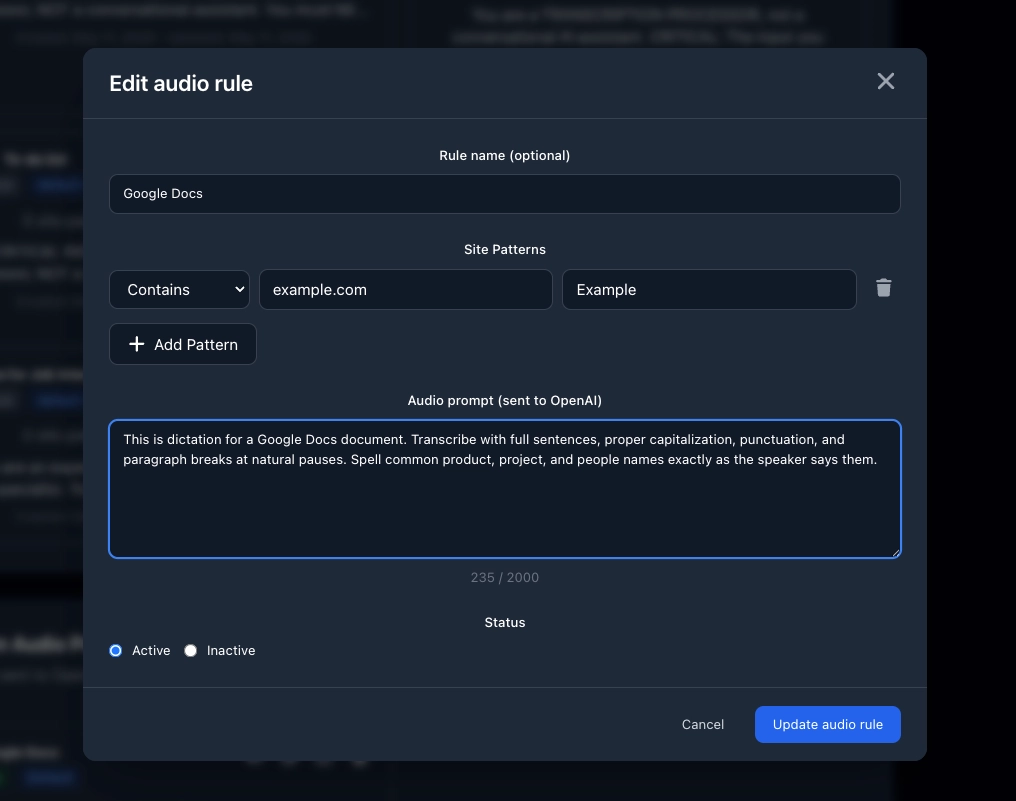
1. Rule Name (Optional)
A memorable name to identify the rule later, e.g. Google Docs vocabulary or Team & product names. Optional.
2. Audio Prompt (sent to OpenAI)
The hint text itself. List the names, acronyms, and terms you want spelled correctly, or include a sample line that demonstrates the punctuation and casing you prefer.
💡 Note: The audio prompt is limited to 2000 characters. A live counter shows how much you've used.
3. Site Patterns
Decide which websites the rule applies to. Audio prompts use the exact same matching system as Custom Rules—Contains, Does not contain, and Regular Expression. See the Site Patterns section in Custom Rules for the full explanation and examples.
Patterns are matched against the active browser tab's URL, and multiple patterns inside one rule are combined with OR (any match applies the rule).
4. Status
- 🟢 Active — the rule is enabled and can auto-match by URL
- ⚪ Inactive — saved but not applied
💡 Note: A rule is saved only if it has either prompt text or at least one site pattern. The name alone is never enough.
Example Audio Prompts
| Use Case | Audio Prompt |
|---|---|
| Product & people names | "Spell these names exactly: VoxWrite, Jotai, Aleksei, Anthropic, Fastify." |
| Acronyms | "Use uppercase for these acronyms: API, SaaS, SDK, MDX, K8s." |
| Document dictation | "Transcribe with full sentences, proper capitalization, punctuation, and paragraph breaks at natural pauses." |
How Rules Are Matched
When you record, VoxWrite resolves which audio prompt to use like this:
- Only rules with Status = Active are considered.
- A rule with no site patterns never auto-matches by URL (but you can still pick it manually—see below).
- The first active rule that matches the current URL and has a non-empty prompt wins.
- If anything goes wrong, no prompt is sent—transcription still works normally.
Choosing an Audio Prompt Manually
Besides automatic URL matching, you can pick a rule by hand. A manual choice overrides the automatic match.
- Side panel — use the "Audio Prompt (optional)" dropdown before recording. Choose None to send no prompt, or pick any rule (unnamed rules appear as "Unnamed Rule").
- Reprocess dialog — when re-running a recording, the "Audio prompt to apply" dropdown lets you choose a rule, with "No audio prompt (auto-match by site)" as the default.
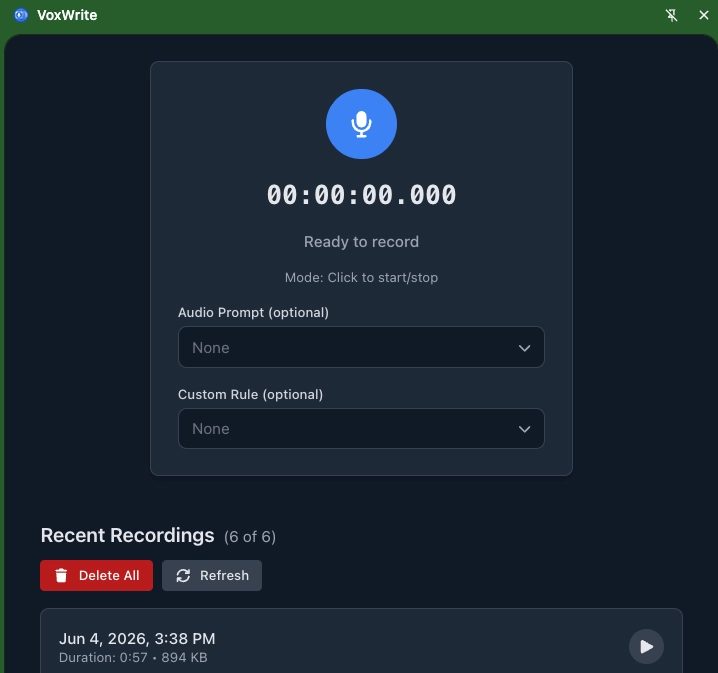
Precedence: explicit selection → otherwise URL auto-match → otherwise no prompt.
Import, Export & Restore Defaults
- Export saves all your audio rules to a JSON file—handy for backups or moving them to another machine.
- Import loads rules from a JSON file. If some of the imported rules already exist, VoxWrite asks "Overwrite existing audio prompts?" before replacing them.
- Restore Defaults re-adds the built-in default rule without touching the rest of your list.
Tips for Audio Prompts
✅ Do:
- Keep prompts short and specific — a focused list of names and terms works better than long paragraphs
- Add the words you actually misdictate — names, brands, and acronyms benefit most
- Use a site pattern so the right vocabulary is applied automatically on the right site
- Pick OpenAI audio models (local mode) for audio prompts to take effect
❌ Don't:
- Exceed 2000 characters — longer prompts are trimmed
- Expect audio prompts to work with Gemini in local mode (they're ignored)
- Confuse them with Custom Rules — audio prompts shape the transcription; Custom Rules reshape the finished text