
Voice Typing With Templates: Dictate Perfectly Formatted Emails, Notes, and To-Do Lists
Last updated: March 2026 | Reading time: 13 minutes
The Messy Output Problem
You try voice typing for the first time. You speak clearly and confidently. You stop recording and look at the result.
It's a wall of text. No paragraphs. No structure. Just a single block of words that vaguely resembles what you said — minus the punctuation, plus a few "ums" and "uhs" you didn't notice.
This is why most people abandon voice typing within a week. Not because the transcription is bad. Because the output is unusable without 10 minutes of manual formatting.
Here's what professionals actually deal with:
- Emails dictated by voice come out as run-on paragraphs with no greeting, no sign-off, and no structure
- Meeting notes become unreadable streams of consciousness with no separation between topics
- To-do lists turn into comma-separated mush instead of clean, actionable items
- Status reports lose their headers, bullet points, and logical sections
- Client notes arrive as disorganized blocks that need complete restructuring before sharing
The transcription was accurate. The words were right. But the format — the thing that makes text actually usable — was completely absent.
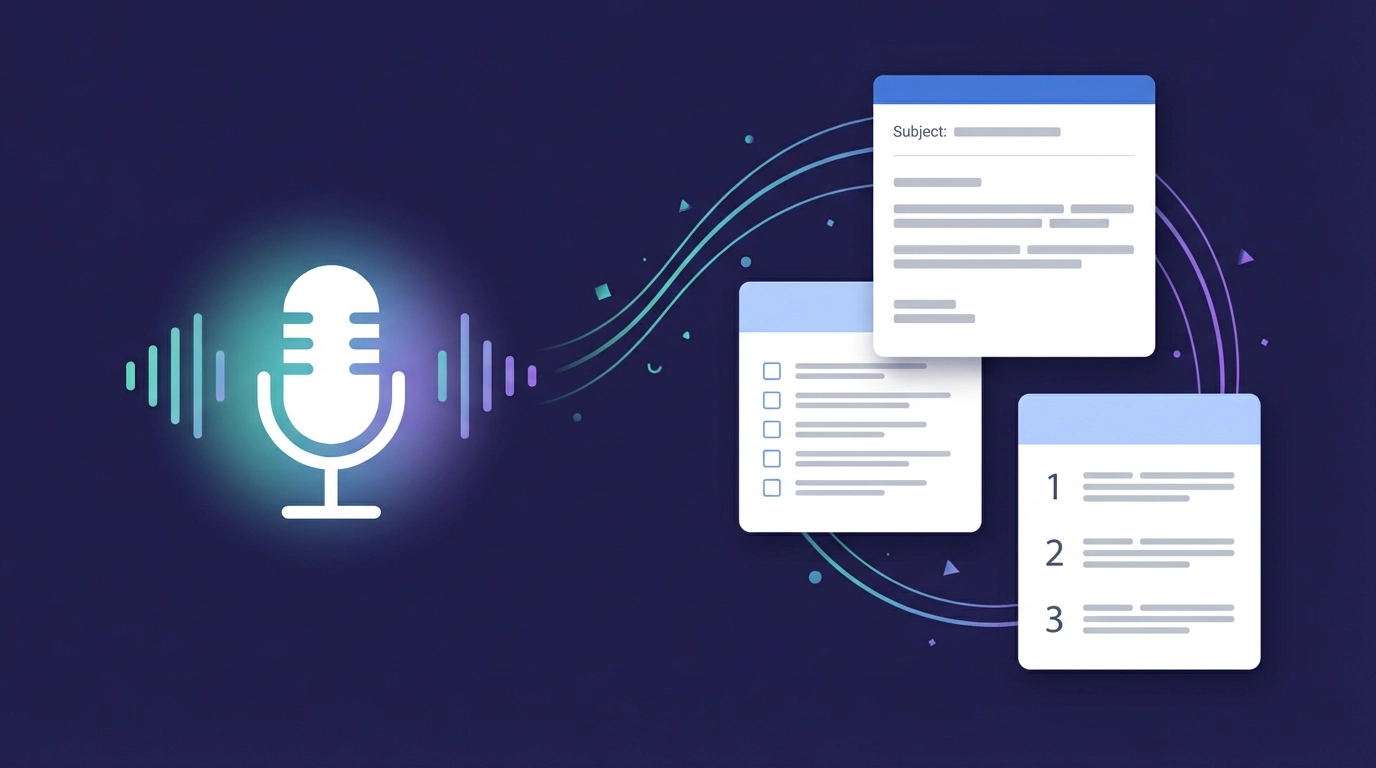
What if your voice typing could deliver perfectly formatted output every single time? Emails with subject lines and greetings. Meeting agendas with numbered items. To-do lists with priorities. Status reports with proper sections.
That's exactly what voice typing with templates does — and it's the feature that turns voice dictation from a novelty into a daily productivity tool.
Why Formatting Matters More Than Transcription
Most voice typing tools obsess over transcription accuracy — getting every word right. And that matters. But for professional use, formatting is the real bottleneck.
Consider this: if you dictate a perfectly transcribed email that arrives as a single paragraph with no greeting and no sign-off, you still need to:
- Add a greeting — "Hi Sarah,"
- Break the text into paragraphs — find the logical breaks
- Add formatting — bold key points, bullet critical items
- Add a sign-off — "Best regards, [Name]"
- Review the flow — does it read professionally?
That's 3-5 minutes of manual editing on a 30-second dictation. You've lost most of the speed advantage that voice typing promised. And according to a Stanford study published in PeerJ Computer Science, speech-to-text input is roughly 3x faster than typing on a keyboard — but only if the output is usable without heavy editing.
Research from Nielsen Norman Group confirms what we intuitively know: people don't read walls of text. They scan for structure — headings, bullets, bold text, logical sections. An unformatted email or note isn't just ugly — it's functionally harder to read and act on.
Speech to text with structure and punctuation isn't a nice-to-have. It's what separates a tool you try once from a tool you use every day.
How Voice Typing With Templates Works in VoxWrite
VoxWrite solves the formatting problem with custom rules — essentially templates that tell the AI how to structure your spoken words. Here's the workflow:
1. You Speak Naturally
Don't think about formatting. Don't say "new paragraph" or "bullet point." Just talk the way you normally would.
2. AI Transcribes Your Speech
VoxWrite captures your words with high-accuracy transcription, removing filler words and false starts automatically.
3. Your Custom Rule Formats the Output
Based on the website you're using and the rules you've configured, VoxWrite's AI restructures your transcribed text into the format you specified. An email template adds greetings, paragraphs, and sign-offs. A to-do template creates bullet points with priorities. A meeting agenda template adds numbered items with time slots.
4. Formatted Text Appears in the Field
The final result — structured, professional, ready to use — appears directly in the text field you're working in. Review it, make any quick adjustments, and send.
The key insight: you define your templates once. After that, every dictation on that website automatically follows the same structure. No manual formatting. No copy-paste into a template. No editing after the fact.
Template Examples: From Messy Speech to Perfect Output
Let's see this in action across the most common use cases.
Professional Emails
You say:
"Hey I need to write to Sarah about the project timeline so basically the design phase is going to take two more weeks because we got feedback from the client and they want to change the color scheme and the navigation layout also the development sprint needs to be pushed back accordingly and we should probably schedule a sync call for next Tuesday to align on the new timeline"
Without a template (raw transcription):
Hey I need to write to Sarah about the project timeline so basically the design phase is going to take two more weeks because we got feedback from the client and they want to change the color scheme and the navigation layout also the development sprint needs to be pushed back accordingly and we should probably schedule a sync call for next Tuesday to align on the new timeline
With a VoxWrite email template:
Subject: Project Timeline Update — Design Phase Extension
Hi Sarah,
I wanted to give you a quick update on our project timeline.
The design phase will take an additional two weeks. We received client feedback requesting changes to the color scheme and navigation layout, and we want to make sure we get these right before moving forward.
As a result, the development sprint will need to be pushed back accordingly.
Could we schedule a sync call for next Tuesday to align on the new timeline? Let me know what time works for you.
Best regards
Same words. Same intent. Completely different usability. That's the power of voice typing email templates.
Meeting Agendas
You say:
"Okay for Monday's team meeting we need to cover the Q1 results review that should take about 15 minutes then we should discuss the new client onboarding process maybe 20 minutes for that and then there's the marketing campaign feedback from last week probably 10 minutes and finally open floor for any questions or blockers let's keep that to 10 minutes"
With a VoxWrite meeting agenda template:
Team Meeting — Monday
Objective: Weekly sync on Q1 progress, onboarding, and marketing
Agenda:
- Q1 Results Review (15 min)
- New Client Onboarding Process (20 min)
- Marketing Campaign Feedback (10 min)
- Open Floor — Questions & Blockers (10 min)
Total Duration: 55 minutes
You spoke for 20 seconds. The output is a professional voice to text meeting agenda ready to paste into a calendar invite.
To-Do Lists
You say:
"Things I need to get done this week review the Q1 budget report that's high priority and it's due by Wednesday then I need to send the proposal to the Acme client that's also high priority due Friday um schedule interviews for the senior developer role that's medium priority no hard deadline and I should update the team wiki with the new onboarding steps that's low priority"
With a VoxWrite to-do list template:
To-Do List — This Week
High Priority:
- [ ] Review Q1 budget report — Due: Wednesday
- [ ] Send proposal to Acme client — Due: Friday
Medium Priority:
- [ ] Schedule interviews for Senior Developer role
Low Priority:
- [ ] Update team wiki with new onboarding steps
No more comma-separated chaos. Dictate to-do lists with voice typing and get structured, prioritized output instantly.
Status Reports
You say:
"Weekly status report for the engineering team this week we completed the user authentication module and deployed it to staging we also fixed 12 bugs from the backlog including the critical payment processing issue for next week we're starting the API v2 migration and running load tests on the new auth system blockers we're waiting on the security team's review of the API endpoints and the design team hasn't delivered the updated mockups yet"
With a VoxWrite status report template:
Engineering Team — Weekly Status Report
Completed This Week:
- Completed user authentication module and deployed to staging
- Fixed 12 backlog bugs, including critical payment processing issue
Planned for Next Week:
- Begin API v2 migration
- Run load tests on new authentication system
Blockers:
- Awaiting security team review of API endpoints
- Design team has not delivered updated mockups
A status report that would take 10 minutes to type and format — dictated in 30 seconds.
Client Notes
You say:
"Just had a call with the Henderson account they're happy with the current service level but they want to explore upgrading to the enterprise plan mainly because they need SSO and the advanced analytics dashboard decision timeline is end of Q2 their IT director Mike Johnson is the main decision maker I should send a comparison document by next Friday and schedule a follow-up demo for the analytics features"
With a VoxWrite client notes template:
Client Note — Henderson Account
Sentiment: Positive — happy with current service level
Interest: Exploring upgrade to Enterprise plan
- Key drivers: SSO requirement, advanced analytics dashboard
Decision Timeline: End of Q2 Decision Maker: Mike Johnson (IT Director)
Action Items:
- Send plan comparison document — Due: Next Friday
- Schedule follow-up demo for analytics features
Setting Up Your First Voice Typing Templates
Step 1: Install VoxWrite
Install VoxWrite from the Chrome Web Store or get it from the Microsoft Edge Add-ons Store. It works on Chrome, Edge, Brave, and any Chromium-based browser.
Step 2: Identify Your Repetitive Formats
Before creating templates, list the text formats you use most often:
- Emails — Do you send the same types of emails daily? (client updates, internal FYIs, follow-ups)
- Notes — Do you take structured notes after calls or meetings?
- Lists — Do you create to-do lists, action item lists, or checklists?
- Reports — Do you write weekly status reports or summaries?
- Documentation — Do you draft SOPs, bug reports, or feedback summaries?
Each of these is a template waiting to be created.
Step 3: Create Custom Rules
Open VoxWrite settings and create a custom rule for each format. Read our custom rules documentation for detailed instructions, or use default templates if they are available for the needed case.
Example rule for professional emails:
Format the dictation as a professional email. Include a clear subject line
based on the content. Add an appropriate greeting. Organize the body into
concise paragraphs. End with a professional sign-off. Remove all filler
words. Use a professional but friendly tone.
Example rule for to-do lists:
Convert the dictation into a structured to-do list. Group items by priority
(High, Medium, Low) if priority is mentioned. Add checkboxes before each
item. Include due dates where mentioned. Keep each item to one concise line.
Example rule for meeting agendas:
Format as a meeting agenda. Include a title with the meeting type and day.
Number each agenda item. Add time allocations if mentioned. Include a total
duration at the end. Add an Objective line summarizing the meeting purpose.
Step 4: Match Rules to Websites
Assign each rule to the website where you use that format. Learn how to configure per-site settings in our bubble settings documentation.
- Gmail / Outlook — Email template
- Notion / Google Docs — Meeting agenda and notes templates
- Jira / Asana / Trello — Task and bug report templates
- Salesforce / HubSpot — Client notes template
- Slack — Quick update template
VoxWrite applies the right template automatically based on where you're dictating. No switching, no selecting — just speak.
Step 5: Test and Refine
Dictate a few entries and review the output. If the structure isn't quite right, refine your custom rule. Be specific about what you want:
- Not "format this nicely" but "use bullet points with bold category headers"
- Not "make it professional" but "use formal tone, no contractions, include a subject line"
- Not "organize it" but "group by priority level with High first, then Medium, then Low"
The more specific your rule, the more consistent your output.
Advanced Template Strategies
Chain Multiple Templates for Complex Workflows
Some workflows require multiple formats from a single dictation session. For example, after a client call you might need:
- CRM notes — structured client record
- Follow-up email — professional message to the client
- Internal Slack update — quick summary for your team
With VoxWrite, you can dictate once and reprocess the same recording with different rules. Open the VoxWrite side panel, find the recording, and apply each rule in turn. Three polished outputs from one dictation session.
Use Templates for Consistent Team Output
If your team produces the same types of documents — status reports, bug reports, meeting notes — standardized templates ensure everyone's output follows the same structure.
Share your custom rules with team members. When everyone uses the same voice typing templates, the quality and consistency of team documentation improves across the board.
Combine Voice Commands With Templates
VoxWrite's templates handle structure automatically, but you can add explicit cues when needed:
- Say "new section" to signal a topic break
- Say "high priority" or "urgent" to trigger priority tagging in to-do templates
- Say "action item" to flag items that need follow-up
- Say "note to self" to separate personal reminders from shared content
Your template rules can be configured to listen for these cues and format accordingly.
Voice Typing Templates by Profession
For Managers and Team Leads
Most useful templates:
- Weekly status reports with Completed / Planned / Blockers sections
- One-on-one meeting notes with discussion points and action items
- Performance review notes with structured feedback categories
- Project update emails with timeline, milestones, and risks
Time saved: Managers who spend 5+ hours per week on written updates can cut that by 60-70% with templated voice typing.
For Sales Professionals
Most useful templates:
- Post-call CRM notes with sentiment, next steps, and decision timeline
- Proposal follow-up emails with personalized value points
- Pipeline update reports with deal stage and probability
- Meeting recap emails with agreed terms and action items
Time saved: Sales reps who dictate CRM notes instead of typing them report reclaiming 45-60 minutes per day.
For Consultants and Freelancers
Most useful templates:
- Client meeting summaries with recommendations and deliverables
- Project scope documents with objectives, timeline, and budget
- Invoice descriptions with itemized work completed
- Weekly client update emails with progress and blockers
For Students and Researchers
Most useful templates:
- Research notes with source, key findings, and relevance sections
- Study outlines with topics, subtopics, and review status
- Essay outlines with thesis, arguments, and evidence
- Lab notes with hypothesis, method, results, and observations
Common Mistakes and How to Avoid Them
Mistake 1: Over-Engineering Your Templates
Problem: Creating a 20-line custom rule that tries to handle every edge case.
Fix: Start simple. A 3-4 sentence rule covers 90% of cases. Add complexity only when you notice consistent issues with the output.
Mistake 2: Trying to Sound "Formatted" While Speaking
Problem: Saying "bullet point," "new paragraph," "colon" instead of speaking naturally.
Fix: Let the template handle formatting. Your job is to communicate the content. The AI's job is to structure it.
Mistake 3: Using One Template for Everything
Problem: A single "professional formatting" rule applied everywhere.
Fix: Create distinct rules for distinct use cases. An email template shouldn't be used for to-do lists. A meeting agenda format doesn't work for client notes. Specificity produces better results.
Mistake 4: Never Reviewing the Output
Problem: Trusting the AI blindly and sending without a glance.
Fix: Always scan the output for 10-15 seconds. Check that the structure makes sense, key details are correct, and the tone matches the context. Voice typing with templates is fast — but a quick review is still essential.
Voice Typing With Templates vs. Other Approaches
| Approach | Speed | Formatting | Consistency | Effort |
|---|---|---|---|---|
| Typing from scratch | Slow (40 WPM) | Manual | Varies | High |
| Copy-paste into a template | Medium | Pre-built | Good | Medium |
| Regular voice typing | Fast (150 WPM) | None | Poor | Post-editing needed |
| VoxWrite voice typing with templates | Fast (150 WPM) | Automatic | Excellent | Minimal review |
The comparison is clear: dictate with automatic formatting AI gives you the speed of voice typing with the structure of templates — without the manual effort of either approach alone.
Tips for Better Results With Voice Typing Templates
1. Front-Load the Key Information
Start your dictation with the most important details. If you're dictating a client note, say the client name and topic first. If it's a to-do list, start with the highest-priority items. Templates work better when the critical information comes early.
2. Group Related Items Together
Don't jump between topics. If you're dictating a status report, cover all completed items first, then all planned items, then all blockers. The AI will group them into the right sections, but clear input produces cleaner output.
3. Mention Priorities and Dates Explicitly
Say "high priority" or "due Friday" — these cues help the template assign urgency and deadlines. If you leave priorities implicit, the template can't infer them.
4. Speak at Your Natural Pace
Don't slow down to "help" the AI. VoxWrite handles natural speech speed. Speak the way you'd talk to a colleague — complete thoughts, normal pace, natural pauses.
5. Use the Same Templates Daily for Muscle Memory
The more you use a specific template, the more naturally you'll dictate for it. After a week of dictating meeting agendas, you'll instinctively organize your spoken thoughts in agenda format — making the AI's job even easier and the output even cleaner.
6. Review and Iterate on Your Rules
If a template consistently puts information in the wrong section or misses a formatting element, update the rule. Good templates evolve with your workflow. Check your output patterns weekly for the first month, then monthly after that.
7. Combine With VoxWrite's Recording History
Every dictation is saved in the VoxWrite side panel. If the formatting didn't come out right, you can reprocess the same recording with a refined rule — no need to dictate again. This makes experimenting with new templates risk-free.
Frequently Asked Questions
What is voice typing with templates?
Voice typing with templates combines speech-to-text transcription with predefined output structures. Instead of getting a raw block of text, your spoken words are automatically organized into a specific format — like a professional email, a bulleted to-do list, or a meeting agenda with sections. VoxWrite's custom rules and AI processing handle the formatting so you can focus on what you want to say, not how it should look.
How do I set up voice typing templates in VoxWrite?
Install the VoxWrite Chrome extension, open the settings, and create custom rules for specific websites or use cases. In each rule, describe the output format you want — for example, "Format as a professional email with subject line, greeting, body paragraphs, and sign-off" or "Convert into a bulleted to-do list with priorities." VoxWrite applies the matching rule automatically based on the website you're using.
Can I dictate emails with proper formatting using voice?
Yes. With VoxWrite's custom rules, you can speak naturally about what you want to communicate, and the AI formats your words into a properly structured email — complete with subject line, greeting, organized body paragraphs, and professional sign-off. You can set different rules for different email contexts: formal client emails, quick internal updates, or follow-up messages.
Does voice typing with templates work for meeting agendas?
Yes. Dictate a meeting agenda by listing the topics you want to cover, and VoxWrite formats them into a structured agenda with numbered items, time allocations, and sections for objectives and action items. Custom rules let you define your preferred meeting agenda format once and reuse it every time.
Can I dictate to-do lists with voice typing?
Yes. Speak your tasks naturally — "I need to review the Q1 report, send the proposal to client by Friday, schedule a call with the design team, and update the project timeline" — and VoxWrite converts your words into a clean, bulleted to-do list. Custom rules can add priority levels, due dates, and categories automatically.
What types of templates work with voice typing?
Any text format you use regularly can become a voice typing template through VoxWrite's custom rules. Common examples include professional emails, meeting agendas, to-do lists, status reports, project updates, client notes, SOPs, bug reports, and feedback summaries. If you can describe the structure in a custom rule, VoxWrite can format your speech to match it.
Can I use different templates for different websites?
Yes. VoxWrite's custom rules are website-specific. Create one template for Gmail that formats emails professionally, another for your project management tool that structures tasks as checklists, and another for your CRM that organizes notes with specific fields. Each rule activates automatically based on the website domain.
How is this different from regular voice typing?
Regular voice typing gives you a raw transcription — a plain block of text that mirrors what you said, filler words and all. Voice typing with templates adds a formatting layer: your speech is transcribed, cleaned up, and restructured into your predefined format. The difference is between getting a wall of text and getting a polished, organized document ready to use.
Does VoxWrite support templates in multiple languages?
Yes. VoxWrite supports 50+ languages for transcription and can apply formatting templates regardless of the input language. You can dictate in Spanish and get a formatted email in Spanish, or speak in German and receive a structured meeting agenda in German. You can even dictate in one language and have the output formatted and translated into another.
Conclusion: Stop Formatting, Start Speaking
The number-one complaint about voice typing has never been accuracy. It's been output quality. Raw transcription gives you words without structure — and structure is what makes text usable.
Voice typing with templates eliminates the formatting bottleneck entirely:
- Emails come out with subject lines, greetings, and professional sign-offs
- Meeting agendas arrive numbered, timed, and organized
- To-do lists appear prioritized, bulleted, and actionable
- Status reports land in proper sections — completed, planned, blockers
- Client notes are structured with sentiment, action items, and timelines
You speak once. The AI formats. You review and send. That's the workflow — and it turns voice typing from a 50%-useful novelty into a 100%-daily tool.
Ready to turn your voice into perfectly formatted text?
Try VoxWrite Free for 7 Days - No credit card required.
Related Articles
- From Casual Speech to Professional Text with AI
- Voice to Email: Two Ways to Write Professional Emails by Speaking
- Dictate Blog Posts: From Voice to Published Content
- Form Filling & Data Entry: Say Your Answers, Watch Them Auto-Fill
About the Author: This guide was created by the VoxWrite team.
Last Updated: March 2026