
Voice-to-Email: 2 Ways to Write Professional Emails Using VoxWrite
Last updated: January 2026 | Reading time: 6 minutes
Write Email by Voice: Two Powerful Methods
Writing professional emails doesn't have to mean spending hours at your keyboard. With the VoxWrite voice-to-email extension, you can dictate professional emails in seconds—and there are two distinct ways to do it.
Whether you prefer working from a dedicated sidebar or want a seamless in-Gmail experience with a floating button, VoxWrite has you covered. Both methods use the same powerful AI to transform your casual speech into polished, professional text.
In this guide, you'll learn:
- How to use the sidebar for voice dictation email writing
- How to set up the floating button for direct Gmail integration
- How to customize templates for formal and friendly email tones
- Tips for getting the best results from speech to text email conversion
Method 1: Using the VoxWrite Sidebar
The sidebar method gives you a dedicated workspace for voice dictation Chrome operations. It's perfect for users who want full control over their recordings and access to their transcript history.
How to Use the Sidebar
Step 1: Open the Sidebar
Click the VoxWrite icon in your Chrome toolbar. The sidebar panel opens on the right side of your browser.
Step 2: Choose Your Email Template
In the sidebar, find the custom rule dropdown menu. Select one of the pre-built templates:
- Email-formal — For professional communications with clients, executives, or formal business correspondence
- Email-friendly — For casual but professional messages to colleagues, partners, or friendly business contacts
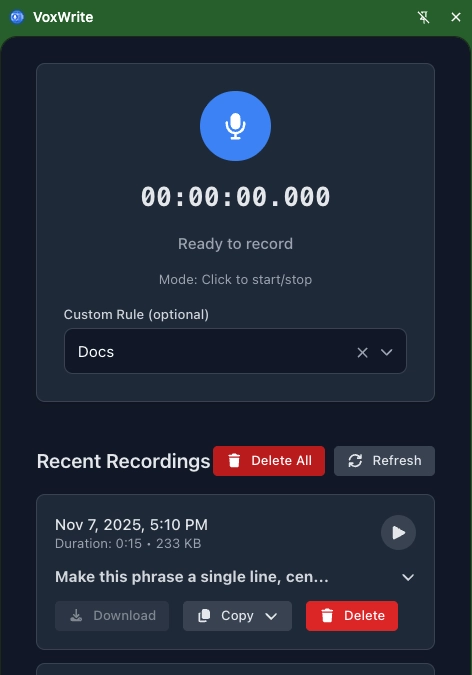
Step 3: Record Your Email
- Click the microphone button
- Speak your email naturally—don't worry about filler words or perfect grammar
- Click stop when you're done
Step 4: Copy and Use
Your AI-transformed text appears in the sidebar. You have two options:
- Copy the clean transcribed text (raw transcription)
- Copy the post-processed output (AI-transformed professional text)
All your recordings are stored in the sidebar under the Microphone section for easy access.
Customizing Your Email Templates
The default Email-formal and Email-friendly templates work great out of the box. But you can customize them to match your specific needs.
To edit a template:
- Go to Settings → Models
- Find the rule in the Custom Rules list
- Click the "Edit" button
- Modify the prompt to match your requirements
- Click Save
Example customizations:
For a sales-focused formal email:
Transform this speech into a professional sales email.
Be persuasive but not pushy. Include a clear call to action.
Use formal business language with a confident tone.
For internal team updates:
Convert to a friendly professional email for internal team communication.
Keep it concise and action-oriented. Use a warm but efficient tone.
Skip overly formal greetings—first names are fine.
Learn more: Complete Custom Rules Guide
Method 2: Using the Floating Button in Gmail
The floating button method provides seamless voice dictation directly in your Gmail compose window. When properly configured, you can start dictating and have your professional email appear automatically—no copying required.
This is the preferred method for users who want the fastest AI email writing workflow.
Setting Up the Floating Button for Gmail
To use the floating button in Gmail, you need to complete two configuration steps.
Step 1: Link Your Custom Rule to Gmail
First, connect your email template to the Gmail website:
- Go to Settings → Models
- Find your preferred email custom rule (Email-formal or Email-friendly)
- Click "Edit"
- In the Site Patterns field, add:
mail.google.com - Click Save
This tells VoxWrite to automatically apply this transformation rule when you're using Gmail.
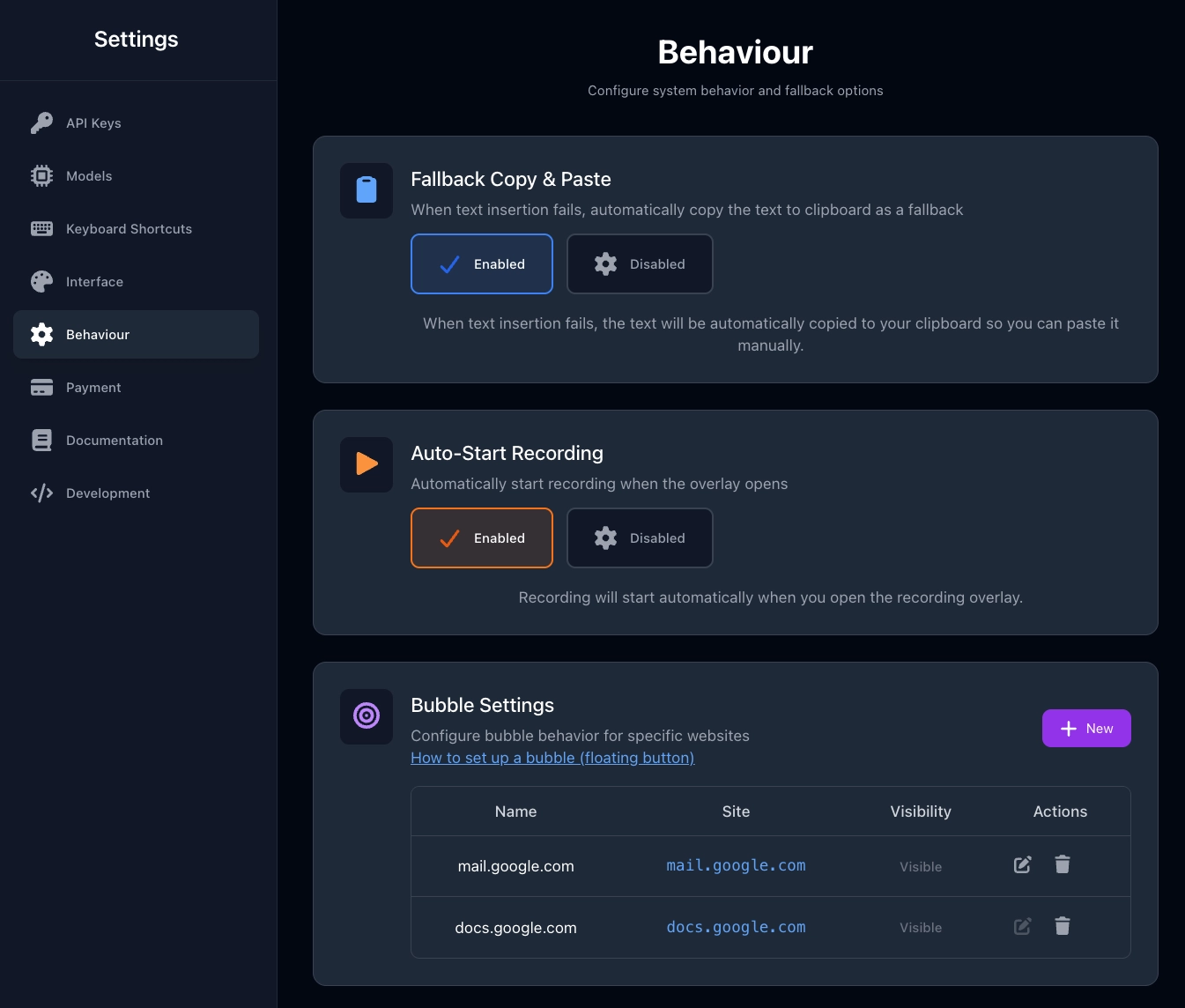
Step 2: Configure Bubble Settings
Next, enable the floating button to appear on Gmail:
- Go to Settings → Behavior
- Find the Bubble Settings section
- Click "New" to add a configuration rule
- Set the Site to:
mail.google.com - Save your configuration
Learn more: Complete Bubble Settings Guide
Using the Floating Button
Once configured, here's how to dictate email by voice directly in Gmail:
- Open Gmail and click Compose to start a new email
- Look for the floating microphone button on your screen
- Double-click the button to activate the microphone
- Speak your email naturally
- Stop recording
- Your professional email text appears automatically in the compose field

That's it. The AI removes filler words, applies professional formatting, and inserts ready-to-send text.
Comparing the Two Methods
| Feature | Sidebar Method | Floating Button Method |
|---|---|---|
| Setup Required | None | Site pattern + bubble config |
| Recording History | Yes, stored in sidebar | Yes, stored in sidebar |
| Text Insertion | Manual copy | Automatic |
| Template Selection | Choose before recording | Auto-applies linked rule |
| Best For | Multiple emails, template switching | Quick single emails, speed |
| Works On | Any website | Configured sites only |
Recommendation: Use the sidebar when you need to switch between templates. Use the floating button when you want the fastest possible workflow for Gmail voice typing and you use always only one template for this webpage.
Real Examples: Voice to Professional Email
Example 1: Formal Client Email
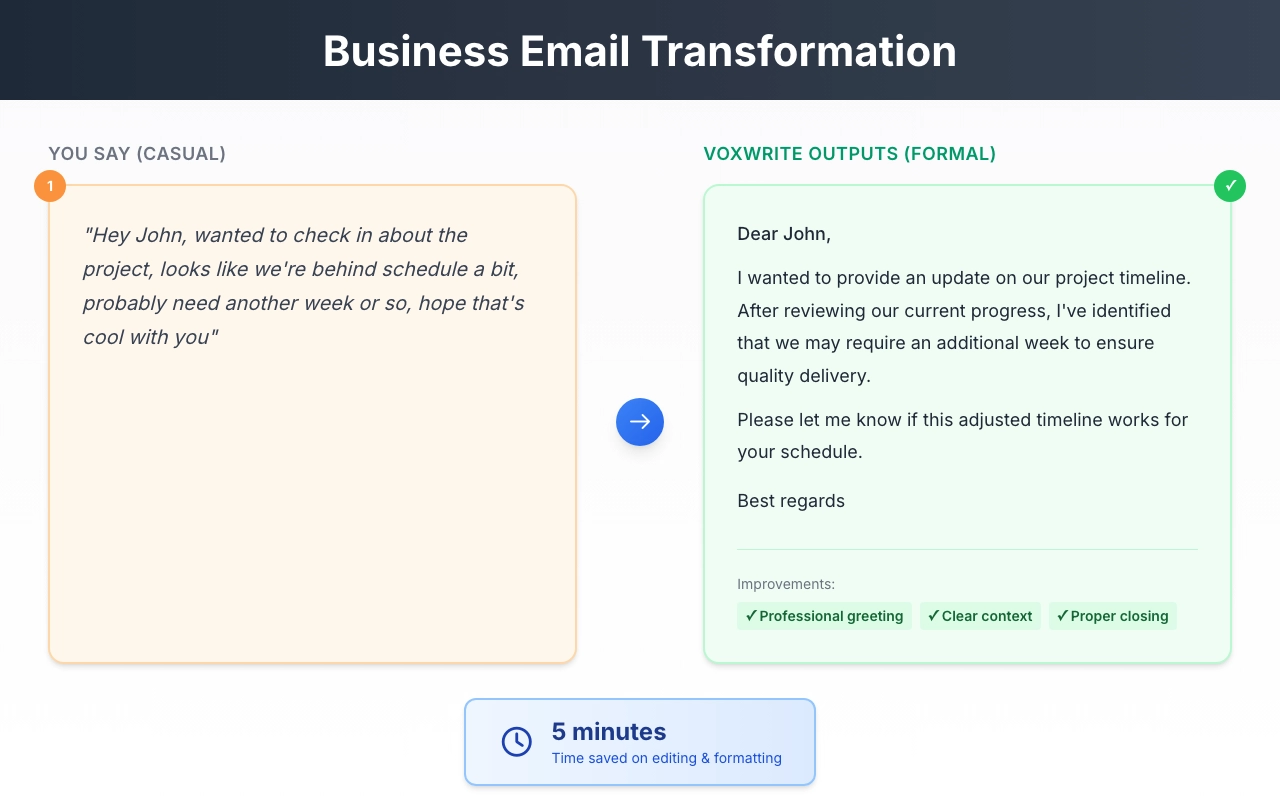
You say:
"Hey um so I wanted to follow up on our meeting last week, the proposal looks good, we're ready to move forward, just need the contract signed, let me know when works for you"
VoxWrite outputs (Email-formal):
Dear [Name],
I hope this message finds you well. I wanted to follow up on our meeting last week regarding the proposal.
After reviewing the details, we are prepared to move forward with the project. At your earliest convenience, please let us know when you would be available to finalize and sign the contract.
Thank you for your time, and I look forward to your response.
Best regards
Example 2: Friendly Colleague Email
You say:
"Hey Sarah just wanted to check in about the quarterly report, are we still on track for Friday, let me know if you need any help"
VoxWrite outputs (Email-friendly):
Hi Sarah,
Just checking in about the quarterly report. Are we still on track for the Friday deadline?
Let me know if you need any help or support getting it finished.
Thanks!
Tips for Better Voice-to-Email Results
1. Speak in Complete Thoughts
Instead of stopping mid-sentence, try to express complete ideas. The AI handles filler words, but complete thoughts give better context.
Good: "I want to schedule a meeting for next Tuesday to discuss the project timeline"
Less ideal: "So um... the meeting... maybe Tuesday... for the project..."
2. Use the Right Template
Choose Email-formal for:
- Client communications
- Executive correspondence
- External business contacts
- First-time contacts
Choose Email-friendly for:
- Team members
- Regular collaborators
- Internal updates
- People you know well
3. Don't Worry About Punctuation
You don't need to say "period" or "comma." The AI adds appropriate punctuation automatically based on context.
4. Mention Key Details Clearly
Names, dates, and numbers should be spoken clearly:
- "Meeting on January fifteenth" ✓
- "Three thousand dollars" ✓
- "John Smith from Acme Corporation" ✓
5. Review Before Sending
AI transformation is excellent but not perfect. A quick review ensures:
- Proper names are spelled correctly
- Specific numbers are accurate
- The tone matches your intent
Privacy and Storage
Where are recordings stored?
All voice recordings are stored locally in your browser. You can find them in the VoxWrite sidebar under the Microphone section.
Can I use my own API keys?
Yes. With VoxWrite BYOK (Bring Your Own Keys), you connect your own API keys and maintain full control over data processing.
Learn more: Privacy Policy
Getting Started
Ready to start writing professional emails by voice?
Install VoxWrite:
- Visit the Chrome Web Store or Microsoft Edge Add-ons
- Click "Add to Chrome" or "Get"
- Confirm installation
- Start using the sidebar immediately, or configure the floating button for Gmail
What you get:
- ✅ 7-day free trial with all features
- ✅ Pre-built Email-formal, Email-friendly and other templates
- ✅ Chrome voice typing for any website
- ✅ AI-powered filler word removal
- ✅ 50+ language support with translation
Frequently Asked Questions
What is the difference between the sidebar and floating button methods?
The sidebar method opens a dedicated panel where you can record, view your transcript history, and copy text manually. The floating button method works directly in Gmail, automatically inserting the processed text into your compose field. Both use the same AI transformation but differ in workflow preferences.
Can I customize the email tone for different recipients?
Yes. VoxWrite comes with pre-built Email-formal and Email-friendly templates. You can edit these templates or create new custom rules in Settings → Models → Custom Rules to match your specific needs for different recipients or situations. All depends on your ability to write prompts correctly 🙂
Do I need to set up anything before using voice-to-email?
For the sidebar method, no setup is required—just open VoxWrite and start recording. For the floating button in Gmail, you need to configure the bubble settings to show on mail.google.com and link your preferred custom rule to that site pattern.
Does VoxWrite remove filler words from my email dictation?
Yes. VoxWrite automatically removes filler words like "um," "uh," "like," and "you know" during the AI transformation process. The output is clean, professional text ready for sending.
Can I dictate emails in languages other than English?
Absolutely. VoxWrite supports 50+ languages for transcription. You can speak in your native language and have the AI translate and format it into professional English, or keep it in the original language with proper formatting.
If you want to write professional emails in English, and you dictate them in your native language, you will need to adjust the custom rule (Email-formal, Email-friendly or your custom rule) to fit your needs. That's all.
Where are my voice recordings stored?
All recordings are stored locally in your browser through the VoxWrite sidebar. You can access them anytime, copy the clean transcribed text, or use the post-processed output. Your audio never leaves your device unless processed by your chosen AI provider.
Conclusion
Writing professional emails doesn't have to be a time-consuming task. With VoxWrite's two voice-to-email methods, you can:
- Use the sidebar for full control, template switching, and access to recording history
- Use the floating button for seamless, fast Gmail integration
Both methods leverage powerful AI to transform your natural speech into polished, professional email text—complete with proper formatting, grammar correction, and filler word removal.
Stop typing. Start speaking. Send professional emails in seconds.
Related Articles
- The Complete Guide to Voice Typing for Faster Email Writing
- From Casual Speech to Professional Text: Using AI to Transform Your Tone
- Google Docs Voice Typing: The Complete Guide to Dictation
About the Author: This guide was created by the VoxWrite team.
Last Updated: January 2026