
The Complete Guide to Voice Typing for Faster Email Writing
Last updated: December 2025 | Reading time: 8 minutes
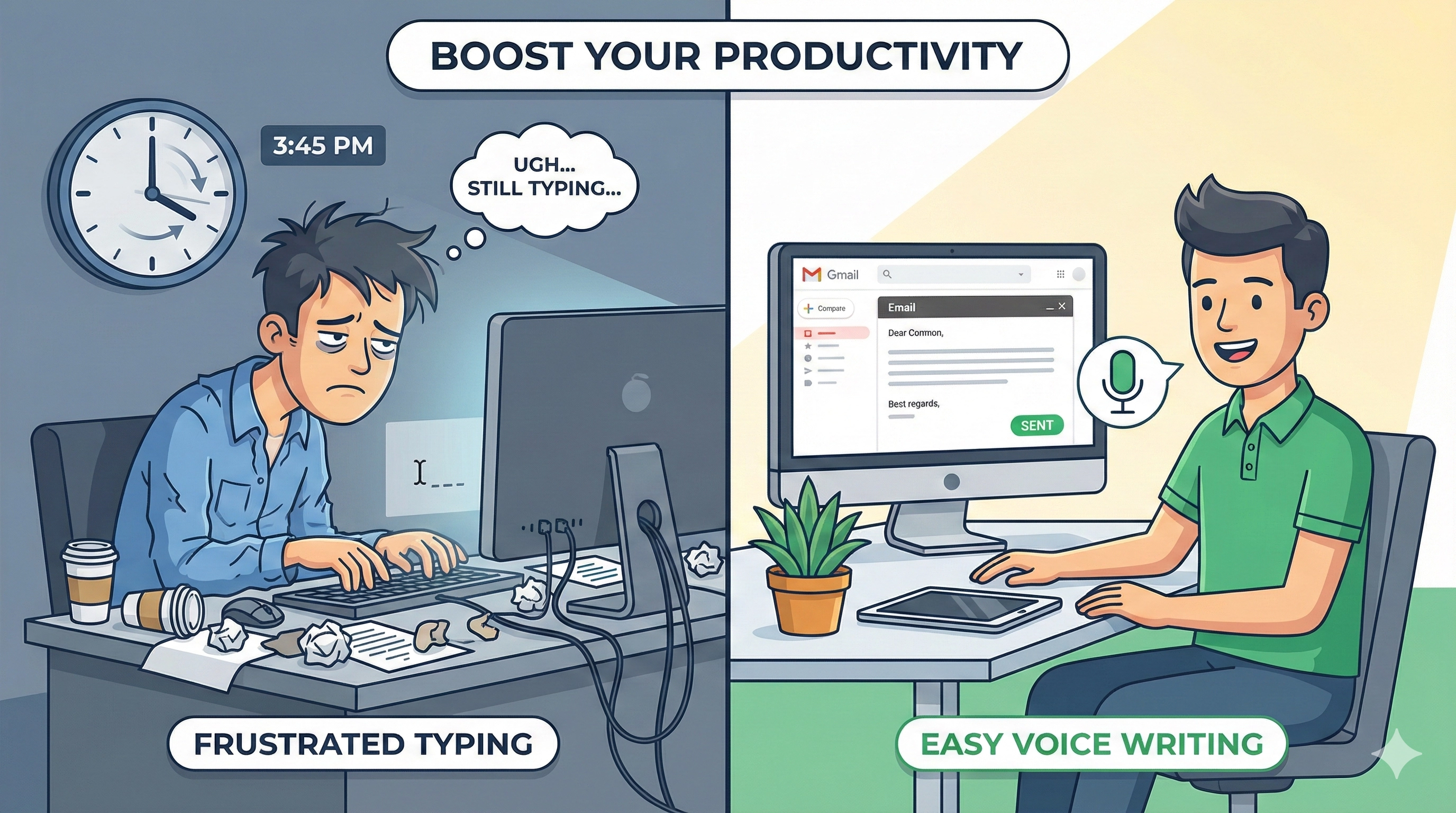
Why Voice Typing for Email Is a Game-Changer
Let's be honest: we spend way too much time writing emails.
The average professional writes 30-40 emails per day. If each email takes 5 minutes to type, that's 2-3 hours daily just on email writing.
But here's the thing: you can speak 3x faster than you type.
- Average typing speed: 40 words per minute
- Average speaking speed: 120-150 words per minute
The math is simple: Voice typing can save you 2-3 hours every single day.
The Problem with Traditional Email Writing
Typing is slow. Especially if:
- English isn't your first language (you translate in your head)
- You're not a fast typer (hunt-and-peck style)
- You write a lot of emails (customer support, sales, management)
- You need to sound professional (takes time to find right words)
Voice typing solves all of this.
But traditional voice-to-text tools have a problem: they just transcribe what you say. If you speak casually, you get casual text. If you ramble, you get messy text.
That's where AI-powered voice typing comes in.
How Voice Typing Works for Gmail (The Modern Way)
Old Way: Simple Transcription
You say:
"Hey um so I wanted to like check in about that project we talked about last week"
You get:
"Hey um so I wanted to like check in about that project we talked about last week"
Problem: You still need to edit and rewrite everything.
New Way: AI Transformation
You say: "Hey um so I wanted to like check in about that project we talked about last week"
You get: "Hello, I wanted to follow up on the project we discussed last week. Could you please provide a status update?"
Magic: AI automatically:
- ✅ Removes filler words ("um", "like", "you know")
- ✅ Adds proper punctuation
- ✅ Makes it sound professional
- ✅ Fixes grammar
- ✅ Translates to English (if you speak another language)
Voice Typing in Gmail Using VoxWrite: Complete Tutorial
VoxWrite is a Chrome extension that brings AI-powered voice typing to Gmail (and every other website).
Here's exactly how to set it up and use it.
Step 1: Install the Chrome Extension
Time needed: 30 seconds
- Go to the Chrome Web Store or Microsoft Edge
- Click "Add to Chrome" or "Get"
- Click "Add Extension" in the popup
- Done! VoxWrite icon appears in your toolbar
Works on:
- ✅ Gmail
- ✅ Yahoo Mail
- ✅ Any email service in your browser
Check the documentation here: How to get started with VoxWrite
Step 2: Set Up Custom Rules (Optional but Powerful)
This is where the magic happens. You can tell VoxWrite exactly how you want your emails to sound.
Examples of custom rules:
For professional emails:
Translate to English and write in a professional business tone. Add a polite greeting and closing. Keep it under 150 words.
For quick replies:
Keep it friendly and brief. Under 50 words. Casual but professional.
For customer support:
Write in a helpful, empathetic tone. Be clear and concise. Include a professional greeting.
For formal emails:
Write a formal email in professional English. Use business language. Be polite and respectful. Include proper greeting and sign-off.
How to set it up:
- Click the VoxWrite icon in Chrome toolbar
- Go to Settings → Custom Rules
- Click "Add New Rule"
- Enter Site Pattern (for example
mail.google.comfor Gmail) - Custom Prompt: Paste your rule (examples above)
- Status: Set to "Active"
- Click "Create Rule"
Pro tip: You can create different rules for different email accounts. One rule for work Gmail, another for personal.
Check the documentation here for step-by-step guide: How to set up Custom Rules in VoxWrite
Step 3: Start Dictating in Gmail
Open Gmail and click "Compose" to write a new email.
You have two ways to start voice typing:
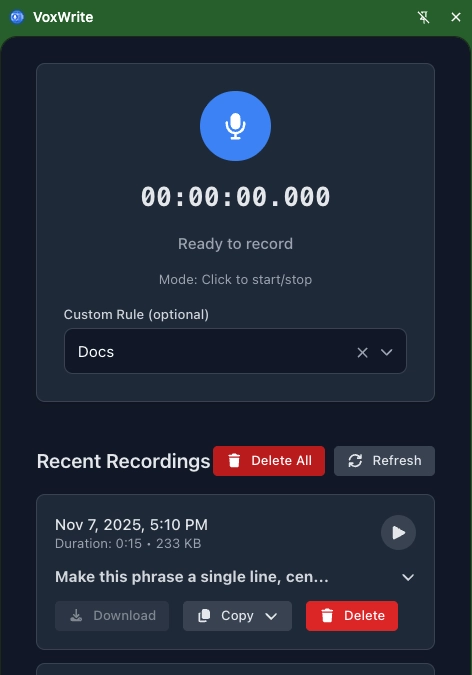
Option A: Use the Side Panel
- Click the VoxWrite icon in Chrome toolbar
- Side panel opens on the right
- Choose a template in dropdown you want to use
- Click the microphone button
- Start speaking
- Click stop when done
- Text appears in the side panel
- Click "Copy" to insert into Gmail
Option B: Use the Floating Button
- Look for the floating microphone button on your screen (Here how to set up the floating button )
- Double-click the button to call the microphone.
- Recording starts immediately or when you click on it (depends on your Settings)

- Speak your email
- Click again to stop
- Text automatically appears in your Gmail compose box
- Edit the text if needed
Step 4: Voice Recording & Transcription
While recording:
- Speak naturally (don't worry about "ums" or pauses)
- Speak at normal pace (not too fast, not too slow)
- You can pause and continue
- Background noise is OK (AI filters it out)
After you stop:
- VoxWrite transcribes your audio (2-5 seconds)
- AI applies your custom rule
- Final text appears (clean, professional, ready to send)
What happens behind the scenes:
- Your voice → Audio file (stored locally in browser)
- Audio → Text transcription (using OpenAI Whisper or GPT-4o)
- Text → AI transformation (using GPT-4 or Claude)
- Final text → Inserted into Gmail
Privacy note: Audio files never leave your computer unless you're using VoxWrite's AI processing. If you use your own API keys, you control exactly where data goes.
Real Examples: Voice to Professional Email
Example 1: Quick Status Update
You say (casually):
"Hey John, just wanted to let you know the report is done, I'll send it over by end of day, let me know if you need anything else"
VoxWrite writes:
Hi John,
I wanted to update you that the report is complete.
I'll send it to you by the end of the day.
Please let me know if you need anything else.
Best regards
Time saved: 3 minutes of typing and editing
Example 2: Customer Support Reply
You say (in Spanish): "Hola, gracias por contactarnos, tu pedido ya fue enviado, deberías recibirlo en dos o tres días"
VoxWrite writes (in English):
Hello,
Thank you for contacting us. Your order has been shipped and you should receive it within 2-3 business days.
If you have any questions, please don't hesitate to reach out.
Best regards
Bonus: Automatic translation + professional tone
Example 3: Formal Business Email
You say: "I need to write to the client about the delay, tell them we're sorry, it'll be ready next week, we're working hard on it"
VoxWrite writes:
Dear [Client name],
I hope this email finds you well.
I am writing to inform you of a brief delay in the project timeline. We sincerely apologize for any inconvenience this may cause.
I want to assure you that our team is working diligently to complete the project, and we expect to deliver it by next week.
Thank you for your understanding and patience.
Best regards
Magic: Casual instructions → Formal professional email
Advanced Tips for Email Dictation
Tip 1: Use Different Rules for Different Recipients
For your boss:
Very professional and formal. Use business language. Be concise and respectful.
For colleagues:
Professional but friendly. Conversational tone. Keep it brief.
For clients:
Professional and polite. Clear and helpful. Include proper greeting and closing.
How: Create multiple rules with different site patterns or page identifiers.
Tip 2: Dictate in Your Native Language
If English isn't your first language:
Set your rule to:
Translate from [your language] to English. Write in professional business tone. Fix any grammar mistakes.
Now you can:
- Think in your native language
- Speak naturally
- Get perfect English emails
Works with: Spanish, French, German, Italian, Portuguese, Chinese, Japanese, and 50+ languages.
Common Questions About Voice Typing for Email
"Does it work with Gmail on mobile?"
Currently: VoxWrite is a Chrome Extension, so it works on desktop only (Windows, Mac, Linux).
Mobile: Use Google's built-in voice typing (but it won't have AI transformation).
"What if I have an accent?"
Good news: Modern AI transcription handles accents very well.
VoxWrite uses OpenAI Whisper and GPT-4o - trained on millions of voices from around the world.
Works great with:
- British, Australian, Indian accents
- Non-native English speakers
- Regional dialects
Tip: Speak clearly (but naturally). The AI gets better the more you use it.
"Can I edit the text after dictating?"
Yes! Edit directly in Gmail like normal
Best practice: Dictate first, edit later. Don't interrupt your flow.
"What about privacy? Is my voice recorded?"
VoxWrite is privacy-first:
- ✅ Audio files stored locally in your browser (not on servers)
- ✅ Deleted after transcription (if you want)
- ✅ Only transcribed text is sent to AI (not audio)
- ✅ You can use your own API keys (full control)
We never:
- ❌ Store your audio on our servers
- ❌ Share your data with third parties
- ❌ Train AI models on your content
See our Privacy Policy for details.
"How much does it cost?"
Four options:
1. Free Trial (7 days)
- Try all features
- No credit card required
- Perfect for testing
2. Subscription (€7.99/month)
- Unlimited transcriptions
- All AI features included
- Priority support
3. Free
- Limited functionalities with max. 7 transcriptions per day.
- Connect your own OpenAI/Anthropic API keys
4. Pay As You Go (BYOK)
- $39.99 one-time unlock
- Connect your own OpenAI/Anthropic API keys
- You only pay for what you use (~$0.01 per email)
Cost breakdown (BYOK):
- 1 email transcription: ~$0.01
- 100 emails: ~$1
- 1000 emails: ~$10
Most users spend: $5-15/month with BYOK
You can find detailed information about the prices and plans on our main page in the Pricing section.
Voice Typing vs Traditional Typing: The Numbers
| Task | Traditional Typing | Voice Typing (VoxWrite) | Time Saved |
|---|---|---|---|
| Short email (50 words) | 3-5 minutes | 30-60 seconds | 3-4 minutes |
| Medium email (150 words) | 8-12 minutes | 2-3 minutes | 6-9 minutes |
| Long email (300 words) | 15-20 minutes | 4-5 minutes | 11-15 minutes |
| 50 emails per day | 3-4 hours | 1-1.5 hours | 2-2.5 hours daily |
Per year: Save 500-600 hours (that's 3-4 months of work time)
Who Should Use Voice Typing for Email?
✅ Perfect for:
1. Non-native English speakers
- Speak in your language, get perfect English
- No more grammar anxiety
- Sound professional instantly
2. Busy professionals
- Managers with 50+ emails daily
- Customer support teams
- Sales reps
- Consultants
3. People with typing issues
- RSI (Repetitive Strain Injury)
- Carpal tunnel syndrome
- Slow typers
- Dyslexia
4. Remote workers
- Multiple time zones = lots of async email
- Need to respond quickly
- Want to sound professional
5. Content creators
- Bloggers who also manage email
- Freelancers juggling clients
- Entrepreneurs wearing many hats
Troubleshooting Common Issues
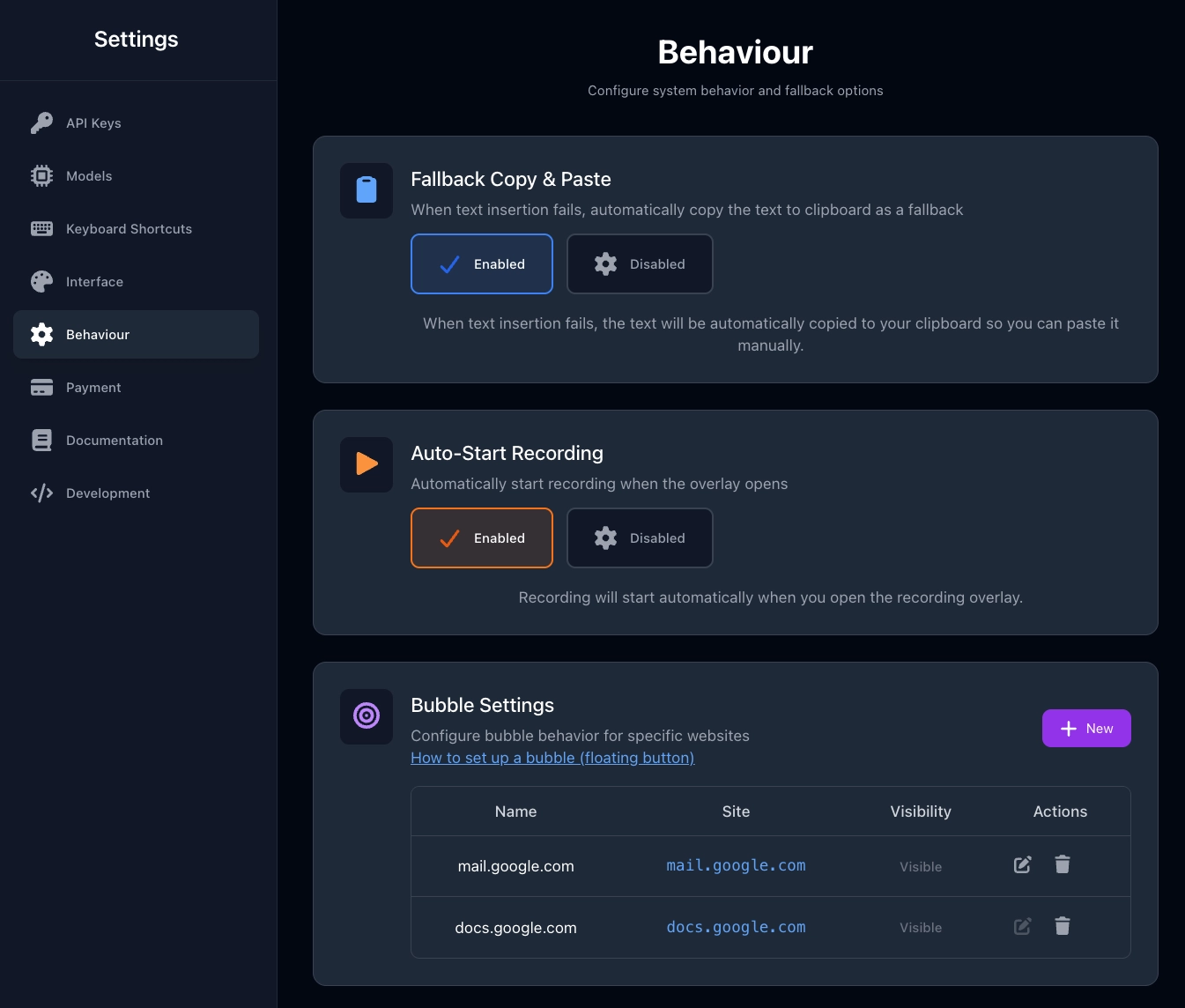
Problem: "The floating button doesn't appear in Gmail"
Solutions: Check if floating button is set up for this website. If not, configure bubble behaviour for this website.
More details find in our documentation here: how to set up the floating button
Problem: "Transcription is inaccurate"
Solutions:
- Speak more clearly (but naturally)
- Reduce background noise
- Check microphone settings in Chrome
- Try a better microphone (external mic recommended)
- Switch to a different audio model in settings (if you use BYOK tariff plan)
Problem: "Text doesn't sound professional enough"
Solution: Improve your custom rule.
Try this:
You are a professional business writer.
Rewrite the following text in a polished, professional tone suitable for business email.
Fix grammar, remove filler words, add proper punctuation.
Keep it concise and clear. Use active voice.
Include appropriate greeting and closing.
Problem: "It's too slow"
Causes:
- Long recording (>5 minutes)
- Slow internet connection
- Complex custom rule
Solutions:
- Keep recordings under 2-3 minutes
- Use faster AI model (GPT-4o Mini instead of GPT-4)
- Simplify your custom rule
- Check internet speed
Best Practices for Email Dictation
✅ Do:
- Speak in complete thoughts - Don't stop mid-sentence
- Use natural pace - Not too fast, not too slow
- Review before sending - AI is good but not perfect
- Create templates - Save common email types as rules
- Practice - You'll get better and faster with time
- Use good microphone - Built-in laptop mic is OK, external is better
❌ Don't:
- Don't spell out punctuation - AI adds it automatically
- Don't worry about "ums" - AI removes them
- Don't speak too formally - Be natural, AI makes it professional
- Don't dictate passwords or sensitive info - Type those manually
- Don't give up after first try - Takes a few emails to get the hang of it
Alternative Tools for Voice Typing in Gmail
How VoxWrite compares:
| Feature | VoxWrite | Voice In | Voicy | Braina | Speechify | Dragon Professional | Google Voice Typing |
|---|---|---|---|---|---|---|---|
| AI Transformation | ✅ Yes | ❌ No | ✅ Yes (limited) | ❌ No | ✅ Yes (new) | ❌ No | ❌ No |
| Works in Gmail | ✅ Yes | ✅ Yes | ✅ Yes | ✅ Yes | ✅ Yes | ✅ Yes (with limitations) | ✅ Yes |
| Language Support | ✅ 50+ languages | ✅ 40+ languages | ✅ 50+ languages | ✅ 100+ languages | ✅ English (expanding) | ⚠️ Limited | ✅ 100+ languages |
| Custom Rules/Prompts | ✅ Unlimited | ❌ No | ❌ No | ❌ No | ❌ No | ❌ No | ❌ No |
| Chrome Extension | ✅ Yes | ✅ Yes | ✅ Yes | ❌ Desktop app | ✅ Yes | ❌ No | ✅ Built-in |
| Automatic Punctuation | ✅ Yes | ✅ Yes | ✅ Yes | ✅ Yes | ✅ Yes | ✅ Yes | ⚠️ Limited (voice commands) |
| Filler Word Removal | ✅ Yes | ✅ Yes | ✅ Yes | ✅ Yes | ✅ Yes | ✅ Yes | ❌ No |
| Translation Support | ✅ Yes (50+ languages) | ❌ No | ⚠️ Limited | ✅ Yes | ❌ No | ❌ No | ❌ No |
| Processing Speed | Variable | Real-time | 1-2 seconds | Variable | Variable | Variable | Real-time |
| Privacy Model | ✅ Local storage + BYOK | ✅ Local processing | ✅ Privacy-focused | ⚠️ Cloud storage | ⚠️ Cloud-dependent | ⚠️ Cloud-based | ⚠️ Cloud-based (Google) |
| Free Option | ⚠️ Limited (7 transcriptions/day) ✅ Free trial | ✅ Free version available | ✅ Free tier | ✅ Free Lite version | ✅ Free trial | ❌ No | ✅ Completely free |
| Pricing | €7.99/mo or €39.99 BYOK | $60/year (Plus) | Free or paid | $99/year Pro | Freemium model | $200-700 one-time | Free |
Bottom line: If you just need basic transcription, Google Voice Typing is fine. If you want professional emails with AI transformation, VoxWrite is the best choice.
Real User Stories
Maria
Marketing Manager • Spain
"English is my second language. I used to spend 30 minutes writing a single email to clients, checking grammar, using Google Translate.
"Now I speak in Spanish, and VoxWrite gives me perfect professional English. I write 20 emails in the time it used to take for 5.
Game changer."
James
Customer Support Lead • UK
"Our team handles 200+ customer emails daily. We started using VoxWrite and response time dropped from 8 minutes to 3 minutes per email.
Customers are happier (faster replies) and our team is less stressed. Plus, all emails sound consistently professional."
Sarah
Freelance Writer • USA
"I have RSI from years of typing. Voice typing saved my career. I can't type for more than 10 minutes without pain.
With VoxWrite, I dictate everything—emails, client proposals, even blog drafts. Zero pain, triple the output."
The Future of Email Writing
Email isn't going anywhere. Despite Slack, Teams, and Discord, we still send 300+ billion emails daily worldwide.
But how we write emails is changing:
- 2020: Type everything manually
- 2023: Basic voice-to-text
- 2025: AI-powered voice transformation
- 2027: Fully AI-assisted communication (you speak intent, AI writes perfect email)
VoxWrite is the bridge between typing and the AI-first future.
Try VoxWrite Free Today
Ready to write emails 3x faster?
Start your free trial (no credit card required):
👉 Install VoxWrite for Chrome 👈
What you get:
- ✅ 7 days free trial (all features)
- ✅ Unlimited voice typing
- ✅ AI transformation included
- ✅ Works on Gmail and any website
- ✅ Cancel anytime
Or try BYOK (Bring Your Own Keys):
- €39.99 one-time unlock
- Connect your OpenAI/Anthropic API
- Pay only for what you use
- Full privacy control
Choose your plan: the Pricing section
Final Thoughts
Writing emails doesn't have to be slow and painful.
With voice typing and AI transformation, you can:
- ✅ Write emails in seconds (not minutes)
- ✅ Sound professional (even if English isn't your first language)
- ✅ Save 2-3 hours every single day
- ✅ Reduce typing strain and fatigue
- ✅ Focus on what matters (not formatting and grammar)
The question isn't "Should I try voice typing?"
The question is: "How much time am I wasting by NOT using it?"
Start today. Your future self will thank you.
Frequently Asked Questions
Can I use VoxWrite for languages other than English?
Absolutely. VoxWrite supports 50+ languages for transcription, including:
- Spanish, French, German, Italian, Portuguese
- Chinese (Mandarin), Japanese, Korean
- Arabic, Hindi, Russian
- And many more
You can also translate between languages. For example:
- Speak in Spanish → Get English text
- Speak in French → Get German text
- Speak in any language → Get professional English
What if I make a mistake while dictating?
No problem! Just keep speaking. You can:
- Edit after: Fix mistakes in the text after transcription
- Re-record: Delete and start over
- Continue: AI often fixes mistakes automatically
Pro tip: Don't stop to correct yourself while speaking. Finish your thought, then edit.
Does it work offline?
No, internet connection required. VoxWrite uses cloud-based AI (OpenAI, Anthropic) for transcription and transformation.
Why: AI models are too large to run locally in browser.
Future: We're exploring offline transcription for basic features.
Can my team use it together?
Currently: VoxWrite is designed for individual use. Each person needs their own license.
Interested in team plan? Email us: [email protected]
How accurate is the transcription?
Very accurate (95-99% with clear audio).
VoxWrite uses OpenAI Whisper and GPT-4o - the same technology powering ChatGPT's voice features.
Accuracy depends on:
- ✅ Microphone quality (better mic = better accuracy)
- ✅ Background noise (quieter = better)
- ✅ Speaking clarity (clear speech = better)
- ✅ Language/accent (English best supported, but all languages work well)
Tip: Use a decent microphone (even a $20 USB mic makes a huge difference).
Ready to transform your email workflow?
👉 Try VoxWrite Free for 7 Days 👈
No credit card required. Cancel anytime.
Related Articles
- Google Docs Voice Typing: The Complete Guide to Dictation
- From Casual Speech to Professional Text: Using AI to Transform Your Tone
About the Author: This guide was created by the VoxWrite team.
Last Updated: December 2025