
Voice Typing for Students & Educators: Write Essays 3x Faster and Plan Lessons Hands-Free
Last updated: May 2026 | Reading time: 12 minutes
The Speed Gap That Hurts Every Student and Teacher
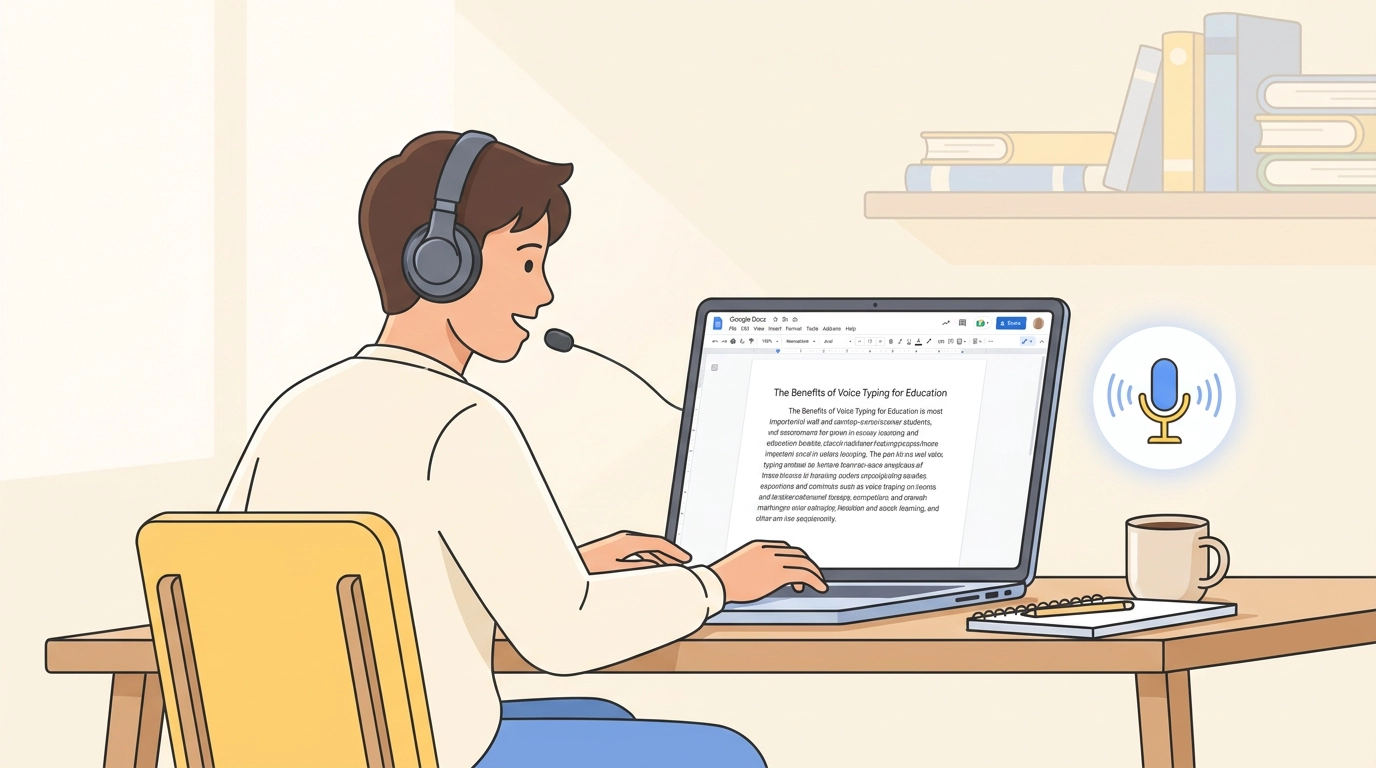
Most people speak at 150+ words per minute. Most people type at 40 words per minute. That gap — almost four-to-one — is the single biggest unused productivity lever in school writing.
A student writing a 1,500-word essay by typing spends 40–60 minutes on the keyboard before they've finished the first draft. The same essay, dictated with proper voice typing for essay writing, lands as a clean first draft in 10–15 minutes of speaking. The student then edits for argument and clarity instead of for typos and punctuation. The math works the same way for teachers: lesson plans, parent emails, and individualized student feedback are all repetitive writing tasks that voice typing collapses by a factor of three or more.
The catch: Google Docs' built-in voice typing is a 2015-era feature that hasn't kept up. It misses punctuation, mangles accents, stops when you switch tabs, makes constant homophone errors, and has no cleanup pass. For a real essay or a stack of teacher feedback comments, the ceiling is too low.
This guide is the practical workflow for voice typing for students and teacher voice typing for lesson plans in 2026: an AI-powered Chrome extension that plugs into Google Docs, Google Classroom, Google Forms, and every other text field on the web on a laptop, Chromebook, or desktop.
Who This Guide Is For
- High school and college students writing essays, research papers, and discussion posts in Google Docs.
- Teachers and professors writing lesson plans, rubrics, parent emails, IEP paragraphs, and individualized feedback.
- ESL students whose spoken English is stronger than their typed English.
- Students with dyslexia, ADHD, dysgraphia, or motor differences who think faster than they can type or spell.
- Homeschool parents managing curriculum, assignments, and written communication for multiple kids.
If your day lives inside Google Docs and Google Classroom, this guide is for you.
The 150-vs-40 WPM Reality
Why is voice typing such a large productivity lever for students and teachers specifically?
- Speaking speed: A confident speaker hits 150–180 WPM in normal conversation. Lecturers and storytellers go faster.
- Typing speed: The average adult types around 40 WPM. Strong typists reach 70–80. Most middle and high schoolers are well under 40.
- Spelling tax for dyslexic students: typing speed drops further when every word requires conscious spelling effort.
- Translation tax for ESL students: typed English involves searching for the right word in a second language, slowing output and accumulating grammar mistakes.
Voice typing collapses all four into "speak the sentence the way you'd explain it to a study partner." A modern AI cleanup pass then handles the mechanics. The student spends their time on ideas instead of typing.
Why Google Docs' Built-In Voice Typing Falls Short for Essays
You can open Tools → Voice typing in any Google Doc on desktop Chrome and dictate for free. That works as a starting point. Here's the wall every student hits inside a paragraph or two:
- No automatic punctuation. You must say
"comma","period","new paragraph"out loud. For a research paper that's hundreds of spoken punctuation marks. The rhythm of thinking through an argument falls apart. - Stops when the tab loses focus. Switch to a research tab, a citation, or a Classroom assignment description — the mic dies silently. You come back and lose 30 seconds of speech.
- Homophone errors everywhere.
there/their/they're.to/too/two.your/you're. The recognizer transcribes acoustically with little context. - Accents and ESL English get mangled. The model is older and trained on far less accented data than current AI speech models.
- No grammar cleanup, no filler removal. Every
"um","uh","like","you know"lands on the page. So do tense slips and missing articles. - Only works inside Google Docs. The moment a student needs to type a discussion-board post, a Google Form short-answer, or an email to a teacher, voice typing isn't available.
Full breakdown with fixes for each failure: Google Docs Voice Typing Not Working? Here's a Better AI-Powered Alternative.
For a one-off short paragraph, Google's built-in tool is fine. For a real essay, a research paper, or a teacher's stack of feedback comments, the ceiling is too low — and the 3x productivity gain disappears.
The AI Chrome Extension That Replaces It: VoxWrite
VoxWrite is a desktop Chrome extension (also on Edge and Brave) that adds AI voice typing to every text field on the web — including Google Docs and Google Classroom.
Three structural differences from Google's built-in tool:
- Modern AI speech model. OpenAI Whisper, Anthropic Claude with audio, or Google Gemini speech — trained on far more accented, multi-domain English than Google's older recognizer.
- LLM cleanup pass. Between the raw transcript and the final output, an LLM inserts punctuation and paragraphs based on meaning, fixes homophones, corrects grammar, and strips filler words.
- Works in every text field. Google Docs, Classroom, Forms, Gmail, the school LMS, discussion boards — same hotkey, same cleanup, everywhere.
For students that means an essay that comes out of dictation already proofread for mechanics. For teachers it means 30 individualized feedback comments that all sound like you — written in 15 minutes instead of an hour.
VoxWrite is the best dictation tool for Google Docs students can install themselves: a Chrome extension that runs on Chrome, Edge, or Brave, including school-issued Chromebooks.
Use Case 1: Voice Typing for Essay Writing
The single most-searched student use case. Walk through a typical five-paragraph essay.
Before AI voice typing
A student opens a Google Doc, switches to Tools → Voice typing, and starts. Within two paragraphs they're saying "comma" every sentence, losing focus when they tab over to a research source, getting back to find recording stopped, and watching the transcript fill with there/their mistakes. They give up and type the rest. The essay takes 60 minutes.
With an AI Chrome extension
Same Doc. Press the VoxWrite hotkey. Speak the thesis paragraph in natural sentences with pauses — the way you'd explain the argument to a friend. Switch to a tab with the quote you're citing. Read it out loud. Come back to the Doc. Speak the analysis paragraph. The transcript that lands at the cursor already has:
- Commas and periods in the right places.
- Paragraph breaks where you changed topics.
there/theirandyour/you'recorrect.- Filler words like
"um"and"so basically"stripped. - Quotation marks around the source text.
Then the student edits for argument, not mechanics. The same essay takes 15–20 minutes.
That's how to dictate an essay without typos: dictate into an AI cleanup layer that catches them before they reach the page.
Use Case 2: Voice Typing for Research Papers
Research papers are the longest, most draining writing assignment most students get. Voice typing doesn't change the research itself — you still read the sources, build the outline, and decide the argument by hand — but it removes the typing tax from everything after that.
The practical workflow:
- Outline by typing, draft by speaking. Type your thesis and section headings into the Doc first. Then for each section, press the hotkey and talk through what you want to say — the way you'd explain that section to your professor in office hours. The AI cleanup pass turns spoken explanation into punctuated, paragraph-broken prose at the cursor.
- Switch tabs to read sources without losing the mic. Open the source in another tab, read the relevant passage to refresh your memory, switch back to the Doc, and keep dictating. Recording survives the tab switch.
- Dictate quotations the simple way. Type the quote and citation by hand — that's where exact wording and page numbers matter. Use voice for the lead-in and the analysis around it, which is where most of the word count actually lives.
- Edit for argument afterwards. Voice typing gives you a structurally clean first draft. The next pass — sharpening the thesis, tightening transitions, checking the citation format — happens at the keyboard.
The split is honest: voice for bulk prose, keyboard for citations and precise edits. That alone takes a typical 2,500-word research paper from a long evening of typing to a couple of focused dictation sessions plus an edit pass.
For the broader long-form dictation technique that translates directly to academic writing, see Dictate Blog Posts: From Voice to Published Content.
Use Case 3: Speech to Text for Homework
Daily homework is the volume use case. Math problem write-ups, science lab questions, history short-answers, English reading responses — each is short, but there are five to ten per day.
With speech to text for homework, the workflow looks like:
- Open the Doc or Form attached to the assignment.
- Press the hotkey.
- Speak the answer in one or two natural sentences.
- The AI cleanup pass produces a complete, punctuated paragraph.
- Move to the next question.
A 200-word homework response that took 8 minutes of typing becomes 60 seconds of speaking plus a quick edit. Multiplied across a school week, that's hours back per student.
For students using Google Classroom for homework distribution, the workflow is identical — Classroom assignments open as Docs and work the same way under the hood.
Use Case 4: Google Classroom Assignments
Most Classroom assignments either attach a Google Doc or expect typed answers in the assignment itself.
- Doc-based assignments: open the attached Doc from inside Classroom, dictate as described above, submit. Classroom doesn't interfere — it's just a Doc.
- Short-answer questions in the Classroom interface or in a Google Form: click into the text field, hit the hotkey, dictate. The cleanup pass produces a complete sentence or short paragraph instead of a raw transcript. Useful for exit tickets, weekly reflections, and response questions.
- Comments on a classmate's Doc (peer review): open the comment box, dictate the feedback. A custom rule like "rewrite as a short, constructive peer-review comment" keeps the tone consistent.
For students juggling multiple Classroom assignments per day, the throughput change is real.
Use Case 5: Teacher Voice Typing for Lesson Plans
Teachers are one of the heaviest-writing professions in the country, and most of that writing is repetitive in tone and structure. Teacher voice typing for lesson plans is one of the highest-leverage uses of dictation anywhere.
Lesson plans
Dictate the objective, the standards, the activities, and the assessment in spoken form. A VoxWrite custom rule like "organize the transcript as a lesson plan with sections for Objective, Standards, Activities, and Assessment; fix grammar; keep it concise" shapes the output into the template you use every week. What was 45 minutes of typing on Sunday night becomes 10 minutes of speaking.
Rubrics and assignment instructions
Speak the criteria and what excellent, proficient, and developing work looks like. The AI formats it into a clean rubric paragraph or table-ready text.
IEP and 504 paragraphs
Long, structured, repetitive writing that has to be both detailed and individualized — high-volume teacher writing that maps perfectly to a custom rule per site.
For the broader custom-rule workflow, see Voice Typing With Templates: Dictate Perfectly Formatted Output.
Use Case 6: Speech to Text for Classroom Feedback
The biggest teacher win. A teacher grading 30 essays can speak two or three sentences of feedback per student, with a VoxWrite custom rule like "rewrite as a short, warm, constructive feedback comment for a student; keep the meaning; fix grammar; two to four sentences" that keeps the tone consistent. The output goes directly into the Classroom comment box, the rubric, or the Doc.
The math: 30 students × 60 seconds of speaking + cleanup ≈ 30 minutes total. The same 30 typed feedback comments routinely take 60–90 minutes.
The same approach extends to:
- Parent emails. A custom rule like "rewrite as a polite, professional email to a parent; fix grammar; do not add a subject line or signature" handles tone. Speak the substance — what the student did, where they're improving, what to work on — and the AI produces a polite, well-structured email ready to send. Background: Voice to Email Two Ways: Professional Emails by Dictation.
- Report card comments. Same workflow; rule tuned for the school's standard format.
- Substitute notes and class updates. Quick, frequent writing that voice typing eliminates.
Use Case 7: Voice Typing for ESL Students
This is where AI voice typing produces some of the biggest student gains.
ESL students often have stronger spoken English than typed English: typing is slow, and grammar mistakes accumulate before the sentence is finished. Voice typing flips that. The student speaks the sentence in real time — already structured the way the brain thought it — and the AI cleanup pass:
- Transcribes accented speech accurately (modern speech models handle Indian English, Filipino English, Korean-accented English, Slavic-accented English, and dozens of other accents far better than the older built-in recognizer).
- Fixes verb tense slips, missing articles, dropped prepositions, and word-order issues.
- Preserves the student's voice, vocabulary, and meaning.
- Doesn't replace the student's ideas — only cleans the mechanics.
Many ESL students use AI voice typing as a daily writing exercise: speak the response, read the cleaned-up version, notice the corrections, internalize the patterns over weeks. Deeper workflow: From Voice to Perfect English: How Non-Native Speakers Use AI Voice Typing.
Use Case 8: Dictation Software for Dyslexia Students (and ADHD, Dysgraphia)
Voice typing has been an established assistive-writing tool for decades. AI-powered voice typing is the same idea with the mechanical friction removed — and it's a strong fit for the most common cognitive accommodations.
- Dyslexia. The student knows what they want to say but loses time and energy to spelling. Dictation software for dyslexia students routes around spelling entirely. The AI cleanup pass also handles capitalization and punctuation so the student isn't doing two cognitively expensive tasks at once.
- ADHD. Thoughts arrive in bursts and don't wait. Voice typing captures them at the speed they appear. Pauses for thinking are tolerated. The student doesn't lose the train of thought to a mechanical task. Full ADHD workflow: Voice Typing for ADHD: A Neurodivergent Superpower.
- Dysgraphia and motor differences. Typing is physically slow or painful. Voice removes the limit entirely.
Most schools accept dictation as an explicit accommodation for students with IEPs or 504 plans, and AI-cleanup voice typing fits into the same category — meaningfully extending what's possible compared to older dictation tools. For a broader accessibility framing, see Voice Dictation for Accessibility: Carpal Tunnel, RSI, and Beyond.
A Side-by-Side: One Essay Paragraph, Two Tools
Imagine a student speaking this aloud — exactly as they'd say it to a study partner:
"so um the main reason the author uses the storm as a symbol is because it like represents the conflict between the two characters and you can see this in chapter three when their argument happens during the storm and to me this shows that the author wants the reader to connect the weather to the emotional state"
What Google Docs built-in voice typing produces (no "comma"/"period" narration):
so um the main reason the author uses the storm as a symbol is because it like represents the conflict between the two characters and you can see this in chapter three when their argument happens during the storm and to me this shows that the author wants the reader to connect the weather to the emotional state
Wall of text. No punctuation. Filler words preserved. Real minutes to clean up.
What an AI Chrome extension produces (just speak, no narration):
The main reason the author uses the storm as a symbol is because it represents the conflict between the two characters. You can see this in chapter three, when their argument happens during the storm. To me, this shows that the author wants the reader to connect the weather to the emotional state.
Filler words removed. Sentence breaks inserted. Commas in the right places. The student edits for argument quality, not mechanics. Multiply that across a five-paragraph essay and the 3x speed improvement is concrete, not theoretical.
Is There a Free Dictation App for Students?
Honest answer in two parts.
Free starting points:
- Google Docs built-in voice typing is free forever. Limited as described above, but a good first taste.
- VoxWrite's 7-day free trial unlocks the full AI Chrome extension — every model, custom rules, every text field — with no credit card required.
After the trial:
- BYOK (bring your own API key) is the cheapest ongoing option. Connect a personal OpenAI, Anthropic, or Google Gemini key and pay only the provider's per-minute audio cost — typically a few cents per hour of dictation. The case for BYOK privacy: Why BYOK AI Tools Are the Future of Private Writing.
- All-included subscription for students who don't want to manage a key.
- School-funded: for students with IEP/504 accommodations, schools sometimes cover the cost of assistive-tech tools.
No tool in this category is permanently free at the AI-cleanup tier — the model providers charge per minute of audio — but the cost per essay is measured in cents, not dollars.
Setting It Up: 5 Minutes, Once
1. Open Chrome (or Edge, or Brave)
Laptop, Chromebook, library desktop, or home computer.
2. Install the extension
Install VoxWrite from the Chrome Web Store, or install from the Edge Add-ons Store.
3. Start the free trial or plug in an API key
7-day free trial, no credit card, for the full extension. Or connect a personal OpenAI, Anthropic, or Gemini key for BYOK privacy.
4. Set a hotkey
Bind start/stop recording to a single key. Walkthrough: hotkeys documentation.
5. (Optional) Add a custom rule for docs.google.com
VoxWrite lets you write a custom rule — a free-text instruction that runs on the transcript every time you dictate on a matching site. Open the VoxWrite Settings → Custom Rule Prompts → Add New Rule, set the site pattern to docs.google.com, and write the rule as plain English.
Examples you can paste in as a starting point:
- Student essay rule: "Clean up the transcript. Remove filler words and repetitions. Use formal academic English. Fix grammar and punctuation. Break into paragraphs at topic shifts. Do not add ideas — only correct what was said."
- Teacher feedback rule: "Rewrite the transcript as a short, warm, constructive feedback comment for a student. Keep the meaning. Fix grammar and punctuation. Two to four sentences."
- Formal email rule: "Rewrite the transcript as a polite, professional email. Fix grammar. Do not add a subject line or signature."
Without a rule, VoxWrite still cleans up filler words and punctuation by default — the custom rule just shapes the output further. Full walkthrough: custom rules documentation.
6. Test in a real Doc
Open a fresh Google Doc. Press the hotkey. Speak for one minute about anything — naturally, with pauses, no "comma"/"period". Watch clean, punctuated prose land at the cursor. Switch tabs once during the test to confirm recording survives.
That's the full setup. From here, voice typing is the default for every Doc, every Classroom assignment, and every Form.
Honest Limits and When to Type Instead
Voice typing isn't the right tool for everything:
- Math, code, and notation-heavy work. Dictating equations, code blocks, or chemistry formulas is awkward. Type those parts.
- Quiet environments where you can't speak out loud. Libraries, exams, classrooms during lecture. Use a headset mic and a low voice, or fall back to typing.
- Final-pass editing. Voice typing is for first drafts and bulk writing. Polishing sentence-level wording is faster with the keyboard.
Use voice for what voice is good at: getting ideas onto the page fast. Use the keyboard for what the keyboard is good at: surgical edits.
School Privacy and AI Policies
A few notes for students, teachers, and IT admins:
- AI vs. dictation. Voice typing transcribes and cleans up what the student said. It doesn't generate ideas the way a chatbot does. Most school AI-use policies distinguish between the two; AI cleanup of your own words generally falls under assistive writing, not generative AI. When in doubt, ask.
- Audio handling. With BYOK, audio goes to the AI provider the user chose (OpenAI, Anthropic, or Google) under that provider's terms. VoxWrite doesn't store dictation server-side. For teachers writing about students, this is the privacy-relevant detail.
- Accommodations. For students with IEPs, 504s, or documented accommodations, dictation is typically explicitly permitted and often recommended. An AI cleanup layer doesn't change the underlying assistive-tech status.
Frequently Asked Questions
What is the best dictation tool for Google Docs students use today?
The best dictation tool for Google Docs students is an AI-powered Chrome extension that runs on a laptop or Chromebook. VoxWrite adds automatic punctuation, fixes homophones, handles accents, removes filler words, and keeps recording when you switch tabs to read sources. It does not run on phones — only on desktop Chrome, Edge, or Brave (including Chromebooks).
Is there a free dictation app for students?
Dictation app for students free options: Google Docs' built-in voice typing is free but limited (no auto-punctuation, no cleanup, breaks on tab-switch). VoxWrite offers a 7-day free trial with no credit card, and BYOK keeps ongoing cost to pennies per hour of dictation.
Can students use speech to text for homework in Google Classroom?
Yes. Speech to text for homework works inside Google Docs, Classroom assignments, and Google Forms. A Chrome extension intercepts dictation in any text field on the web, so the same workflow handles every assignment type.
How does voice typing for research papers work?
Voice typing for research papers: outline by typing, draft by speaking. An optional VoxWrite custom rule for docs.google.com shapes the transcript to formal academic English. Switch to source tabs while dictating; recording survives the tab switch. Type citations and exact quotations by hand — use voice for the analysis around them.
How do I dictate an essay without typos?
How to dictate an essay without typos: use a laptop or Chromebook running Chrome, Edge, or Brave; install an AI voice typing Chrome extension like VoxWrite; optionally add a custom rule for docs.google.com (a free-text instruction like "clean up the transcript, use formal academic English, fix grammar and punctuation"); and speak naturally. The AI cleanup pass corrects homophones, adds punctuation, removes filler words, and inserts paragraph breaks before the text reaches the page.
Is there a voice to text Chrome extension for students?
Yes. Voice to text Chrome extension for students: VoxWrite installs from the Chrome Web Store (and Edge Add-ons) and runs on desktop Chrome, Edge, or Brave — including Chromebooks. It works inside Google Docs, Classroom, Forms, Gmail, and every text field on the web.
Can teachers use voice typing for lesson plans?
Yes. Teacher voice typing for lesson plans is one of the highest-leverage teacher use cases. A VoxWrite custom rule like "organize the transcript as a lesson plan with sections for Objective, Standards, Activities, and Assessment; fix grammar" shapes spoken input into the school's standard template, turning 45 minutes of Sunday-night typing into 10 minutes of speaking.
Does AI voice typing help with speech to text for classroom feedback?
Yes. Speech to text for classroom feedback is a teacher's biggest single time-saver. A VoxWrite custom rule like "rewrite as a short, warm, constructive feedback comment for a student; two to four sentences" keeps tone consistent across 30 individualized comments, dropping an hour of typing to about 15 minutes of speaking.
Is there dictation software for dyslexia students?
Yes. Dictation software for dyslexia students is a long-established accommodation, and AI voice typing extends it: spelling is bypassed entirely, and the AI cleanup pass handles capitalization, punctuation, and grammar so the student doesn't lose focus to mechanical editing. The same applies to ADHD and dysgraphia.
Does voice typing for students work on iPhone, Android, or iPad?
No. VoxWrite is desktop Chrome, Edge, or Brave only — there is no iOS app, no Android app, and no iPad version. Students dictate at a laptop, Chromebook, or desktop. For phone dictation, the device's built-in dictation is the only option, with none of the AI cleanup advantages.
Conclusion: A 3x Productivity Lever Hiding in Plain Sight
Voice typing isn't a novelty feature. For students and teachers, it's a structural productivity lever: 150 WPM spoken vs. 40 WPM typed, with a modern AI cleanup layer that produces essay-ready prose directly in Google Docs and Google Classroom.
The gain for students writing essays and research papers, ESL writers improving daily, students with dyslexia or ADHD getting ideas onto the page, and teachers writing personalized feedback at scale is hard to overstate.
Voice typing should feel like talking. For students and teachers, the right tool gets you there 3x faster.
Ready to write your next essay 3x faster — or grade your next stack of feedback in a fraction of the time?
Try VoxWrite Free for 7 Days — No credit card required. Desktop Chrome, Edge, or Brave (including Chromebooks).
Related Articles
- Google Docs Voice Typing Not Working? Here's a Better AI-Powered Alternative
- From Voice to Perfect English: Non-Native Speakers and AI Voice Typing
- Voice Typing for ADHD: A Neurodivergent Superpower
About the Author: This guide was created by the VoxWrite team.
Last Updated: May 2026