Reclaim Your Dead Time: How to Draft Emails, Reports, and Notes Hands-Free with Voice Typing
Last updated: April 2026 | Reading time: 14 minutes
The Productivity Trap Nobody Talks About
You sit down at your desk at 9 AM. You have 23 unread emails, a status report due at 10, three client follow-ups from yesterday, and meeting prep for the 11 o'clock call. You open your inbox, put your fingers on the keyboard, and start typing.
Three hours later, you've written 14 emails, half a status report, and zero of those client follow-ups. Your calendar is now packed with afternoon meetings, and the writing work you didn't finish will bleed into tonight.
This isn't a time management problem. It's a speed problem.
The average professional types at 40 words per minute. That means a 200-word email takes 5 minutes of pure typing — not counting the time you spend staring at the screen, rephrasing, and second-guessing. A 1,000-word report takes 25 minutes. A detailed client follow-up takes 8-10 minutes. Stack all that up across a day, and knowledge workers spend 2-3 hours typing content they could generate in a fraction of the time.
Now consider this: the average person speaks at 130-150 words per minute. That's 3-4x faster than typing. That 200-word email? Under 90 seconds of speaking. The status report? Six minutes. The client follow-up? Two minutes.
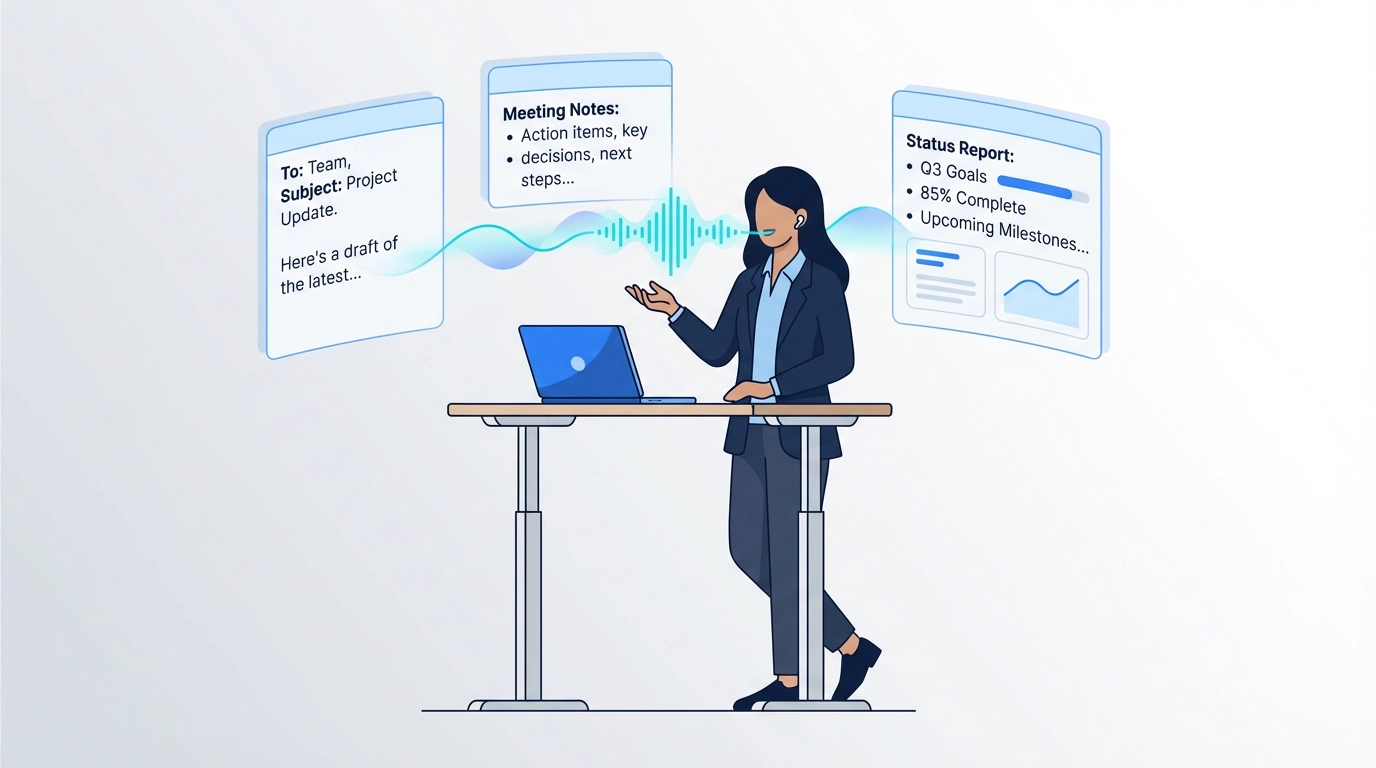
Hands-free typing software doesn't just change how fast you write — it changes when and where you can write. You don't need your fingers on a keyboard. You don't even need to look at a screen. You can pace around your office, stretch after a long meeting, organize your desk, eat lunch, or walk between conference rooms — all while producing clean, professional text at 150 words per minute.
This guide shows you how voice to text for professionals transforms dead moments into your most productive writing time.
Why Your Hands Are the Bottleneck
Think about how you actually spend your work day. There are two categories of time:
Heads-down screen work: Tasks that require you to look at a screen and use your hands — coding, data analysis, design, spreadsheet work, complex editing. These need both your visual attention and manual dexterity.
Everything else: Emails, meeting notes, status updates, follow-ups, brainstorming, rough drafts, Slack messages, CRM updates, project briefs. These are text generation tasks where the hard part isn't formatting or editing — it's getting ideas out of your head and into words.
Here's the problem: professionals treat both categories the same way. They sit at a desk, put hands on keyboard, and type. But for text generation tasks, the keyboard is the slowest tool available. You're using your fingers at 40 WPM when your voice could do it at 150 WPM.
The Two Phases of Writing
Every piece of professional writing involves two distinct phases:
- Generation — Getting ideas out of your head and into text
- Refinement — Editing, formatting, and polishing that text
Most people try to do both simultaneously, which is why writing feels slow and painful. You type a sentence, immediately edit it, rewrite it, edit again, then move to the next sentence. This constant switching between creating and criticizing kills your flow.
Voice typing naturally separates these phases. When you dictate, you're doing pure generation — speaking your thoughts as they form, without stopping to edit. The refinement happens after, when you review and adjust the text.
This separation is actually how professional writers have worked for decades. Executives dictated letters to secretaries. Journalists called in stories from payphones. Authors spoke into tape recorders. The method is proven — the technology just caught up.
Speaking Unlocks Better Thinking
There's a cognitive reason why dictation produces surprisingly good first drafts. Research from the University of Wisconsin found that speaking activates different language processing pathways than typing. When you type, you're constrained by your finger speed and the visual feedback loop of watching words appear on screen. When you speak, your thoughts flow more naturally — closer to how you'd explain something to a colleague.
This is why people often say "I know what I want to write, I just can't get it down." They can get it down — they just need to speak it instead of type it.
A study published in PeerJ Computer Science found that participants who dictated text produced longer, more detailed content than those who typed, with comparable or better quality after editing. The ideas were richer because the speakers weren't bottlenecked by their typing speed.
What You Can Dictate Hands-Free
Not all writing tasks are suited for voice dictation. The best candidates share three traits: they come from your own thoughts (not reference materials), they benefit from a conversational tone, and they don't require complex formatting during the first draft.
Emails
Email is the single biggest time sink for professionals. The average knowledge worker spends 2.6 hours per day on email — and most of that time is composing, not reading. A hands-free email writing tool like VoxWrite lets you dictate emails while pacing your office, stretching, or standing at your desk — turning what used to be a sedentary, slow process into something fast and physical.
What it sounds like:
"Email to Sarah Chen, subject: Q3 budget review follow-up. Hi Sarah, thanks for pulling together the budget numbers yesterday. I reviewed the projections and have two concerns. First, the marketing allocation seems high compared to the projected pipeline growth. Can we schedule a 15-minute call to walk through the assumptions behind those numbers? Second, I noticed the engineering headcount doesn't account for the contractor conversions we discussed in March. I think that adds roughly 180K to the annual total. Can you update the sheet and share it with the leadership team by Thursday? Thanks, Mike."
What VoxWrite outputs:
Hi Sarah,
Thanks for pulling together the budget numbers yesterday. I reviewed the projections and have two concerns.
First, the marketing allocation seems high compared to the projected pipeline growth. Can we schedule a 15-minute call to walk through the assumptions behind those numbers?
Second, I noticed the engineering headcount doesn't account for the contractor conversions we discussed in March. I think that adds roughly $180K to the annual total. Can you update the sheet and share it with the leadership team by Thursday?
Thanks, Mike
Clean, formatted, and ready to send. This email took under a minute to dictate. Typing it would have taken 4-5 minutes at a desk. And you didn't need to be staring at a screen to do it.
Meeting Notes and Action Items
Just finished a meeting and walking back to your desk? Open your laptop, activate VoxWrite, and dictate notes while walking through the office or standing by your desk. Capture the key takeaways immediately while they're fresh — before the next meeting pushes them out of your head.
"Meeting notes from the product sync. Three decisions made. First, we're pushing the v2.1 release to March 15 to include the authentication fix. Second, the design team will deliver updated mockups by end of day Friday. Third, we're deprioritizing the analytics dashboard in favor of the API rate limiting feature. Action items: Jake will create the release branch by end of day. Lisa will update the roadmap doc. I'll send the revised timeline to the stakeholders."
Thirty seconds of speaking. Clean, structured notes ready to share. The alternative: spending 5 minutes at your desk typing the same thing — by which point you've forgotten half the details.
Reports and Status Updates
Weekly status reports are the type of writing most professionals dread. They're repetitive, time-consuming, and always due at the worst moment. But they're perfect for dictation because you already know what you did this week — you just need to say it.
Stand up from your desk, stretch, pace around your office, and dictate:
"Status update for the week of April 7th. This week the team completed the database migration for the user analytics module. Performance testing shows a 40 percent improvement in query response times. We also resolved the authentication timeout issue that was affecting mobile users — root cause was a session token expiration mismatch between the API gateway and the identity service. Next week we're focusing on the payment processing integration. Main risk is the third-party API documentation being outdated, so I've scheduled a technical call with their team for Monday."
That's your entire weekly status report. Dictated in about 45 seconds. You can sit back down with it already written.
Project Proposals and Briefs
The hardest part of any proposal is getting the first draft out of your head. Voice dictation removes that friction entirely. Speak through your proposal structure — the problem, the approach, the timeline, the resources needed — and you'll have a solid draft to refine. Many professionals find that pacing while dictating a proposal produces better, more persuasive first drafts than sitting and typing.
Slack Messages and Quick Responses
Short messages add up. A 30-second Slack reply takes 2 minutes to type when you factor in context switching, typing, and proofreading. Dictate it in 10 seconds. Multiply that by the 50+ messages most professionals send per day, and the time savings are significant.
Brain Dumps and Brainstorming
Sometimes the most productive thing you can do is a raw brain dump. No structure, no audience — just speak every idea, concern, and thought as it comes. Pace around, look out the window, let your mind wander. VoxWrite cleans up the transcript, and you have a written record of your thinking to organize later.
The Hands-Free Dictation Workflow
Most professionals are chained to their keyboard for tasks that don't require it. AI voice typing for busy professionals changes that entirely. With a Bluetooth headset and VoxWrite active in your browser, you can dictate anywhere within range of your computer — pacing your office, stretching by the window, standing at a whiteboard.
Scenario 1: The Morning Email Blitz
Time: 15-20 minutes Setup: Laptop open, VoxWrite active in Gmail, Bluetooth earbuds in
Instead of hunching over your keyboard for an hour, stand up. Pace around your office. Look at your inbox on your screen, then dictate each response while moving.
Optimal workflow:
- Scan your inbox — identify the 5-8 emails that need responses
- Stand up and start dictating — work through them one by one, pacing around your office
- Quick review — sit down, scan each response for accuracy, hit send
Most professionals clear their morning inbox in 15-20 minutes with dictation. The same work takes 45-60 minutes of typing. You save 30-40 minutes and your back thanks you for not sitting the entire time.
Scenario 2: Post-Meeting Note Capture
Time: 2-5 minutes Setup: Laptop open, VoxWrite active in your notes tool
The 5 minutes right after a meeting are the most valuable for note-taking — and the most commonly wasted. Instead of switching to your next task immediately, stay standing and dictate everything you remember.
"Product review meeting recap. The main feedback was that the dashboard prototype is too cluttered. Sarah suggested consolidating the three metric panels into a single expandable view. The team agreed. Jake raised a concern about the API response times for the analytics queries — they're averaging 800 milliseconds, which is too slow for real-time display. Action items: I'll redesign the dashboard layout by Thursday. Jake will optimize the analytics queries. We'll reconvene Friday at 2 PM to review both."
One minute of speaking. A complete, clean meeting summary that would take 5-8 minutes to type. Do this after every meeting and you'll never lose track of decisions, action items, or commitments again.
Scenario 3: The Pacing Dictation
Time: 10-30 minutes Setup: Laptop at a standing desk or table, Bluetooth headset, VoxWrite active
This is multitasking with voice dictation at its best. Connect a Bluetooth headset with decent range, activate VoxWrite on your laptop, and pace around your office, your home, or even a nearby hallway. You can stretch, do light exercises, or just move — all while dictating content at 150 WPM.
This works especially well for:
- Long-form content — proposals, reports, documentation drafts
- Brainstorming — movement genuinely improves creative thinking
- Difficult emails — pacing helps you think through sensitive communications
- End-of-day brain dumps — capture everything in your head before logging off
Research on creative thinking shows that physical movement increases creative output by up to 60% compared to sitting. When you dictate notes while pacing, you're combining the speed of voice typing with the cognitive benefits of movement.
Scenario 4: Lunch Break Productivity
Time: 10-15 minutes Setup: Laptop open while eating
You're eating lunch at your desk anyway. Instead of typing with greasy fingers (or not working at all), dictate. Eating is a low-cognitive-demand task that pairs perfectly with voice typing. Clear your remaining emails, draft tomorrow's meeting agenda, or dictate a project brief — all while your hands are busy with a sandwich.
Scenario 5: The Standing Desk Advantage
Time: Variable Setup: Standing desk, VoxWrite active, optional headset
Standing desks were supposed to solve the sitting problem. Voice typing actually does. When you can alternate between typing (for precision tasks) and dictating (for generation tasks), you naturally shift your posture throughout the day. Stand and dictate for 20 minutes, sit and refine for 10. The physical variation is a bonus — the productivity gain is the real point.
Why AI Makes Hands-Free Dictation Actually Useful
Raw speech-to-text has been around for years. So why hasn't everyone switched to voice typing? Because raw transcription produces unusable text.
The Problem With Basic Dictation
Here's what basic dictation tools give you when you speak naturally:
"so um i wanted to follow up on the meeting from yesterday basically the main thing is that um the client wants to move the deadline up by two weeks and i think i think we can probably do it but we need to we need to talk to the engineering team first about whether the the API integration is going to be ready honestly im a little worried about the testing timeline but you know lets see what jake says"
No punctuation. No capitalization. No paragraph breaks. Filler words everywhere. Repeated words. Run-on sentences. This isn't usable text — it's a mess that takes almost as long to clean up as it would to type from scratch.
This is why most professionals tried voice dictation once and gave up.
What AI Voice Typing Changes
AI voice typing for busy professionals adds an intelligence layer between your speech and the output. VoxWrite doesn't just convert sound to text — it processes your speech through AI that:
- Removes filler words — "um," "uh," "like," "you know," "basically" disappear automatically
- Fixes grammar and punctuation — proper sentences, commas, periods, capitalization
- Eliminates false starts and repetitions — "I think I think we can" becomes "I think we can"
- Formats intelligently — paragraph breaks, bullet points, email structure
- Applies custom rules — your per-website preferences for tone, format, and style
The same dictation through VoxWrite:
I wanted to follow up on yesterday's meeting. The client wants to move the deadline up by two weeks. I believe we can accommodate this, but we need to check with the engineering team first about whether the API integration will be ready. I'm concerned about the testing timeline — let's get Jake's input before committing.
That's a sendable email. Dictated hands-free. Zero editing required.
For a deep dive into how VoxWrite handles speech cleanup, read our complete guide to removing filler words from text.
Custom Rules for Different Contexts
One of VoxWrite's most powerful features for hands-free dictation is custom rules per website. You can set different formatting instructions depending on where you're dictating:
For Gmail (emails):
Format as a professional email. Add appropriate greeting and sign-off.
Break into short paragraphs. Keep tone professional but warm.
If I mention a subject line, use it as the email subject.
For Google Docs (reports):
Format as a structured document with clear section headers.
Use bullet points for lists. Keep paragraphs concise.
Professional, formal tone suitable for business reports.
For Notion (notes):
Format as quick notes with bullet points. Keep it concise.
Separate action items from observations. Use markdown formatting.
For Slack (messages):
Keep it brief and conversational. No formal greeting needed.
Break longer messages into short paragraphs for readability.
With these rules in place, you don't even need to think about formatting when you dictate. Speak naturally, and the output matches the platform. Learn more about setting up per-website rules in our guide to voice typing with templates.
The Numbers: How Much Time Hands-Free Dictation Actually Saves
Let's do the math on what happens when you switch your content generation tasks to voice typing.
Average Professional's Writing Load
- Emails sent per day: 40 (industry average for knowledge workers)
- Average email composition time: 3-5 minutes (typing)
- Total daily email writing time: 2-3 hours
- Status reports/updates per week: 3-5
- Meeting summaries per week: 5-10
- Slack messages per day: 50+
Voice Typing Output
- Average speaking speed: 130-150 WPM
- Average typing speed: 40 WPM
- Speed multiplier: 3-4x
- Time to dictate a 200-word email: ~90 seconds
- Time to type a 200-word email: ~5 minutes
What That Means in Practice
Morning email session (20 minutes of dictation):
- 10-15 professional emails drafted and sent
- OR 1 detailed status report + 5-6 emails
- OR 1 project proposal first draft
- OR meeting prep notes for 3-4 meetings
Post-meeting captures (5 minutes total per day):
- Complete meeting notes for every meeting
- Action items documented and shared within minutes
- Follow-up emails drafted before you sit back down
Weekly time savings: 5-8 hours of writing work shifted from typing to dictation
Annual time savings: 250-400 hours — that's 6-10 full work weeks of typing time eliminated
You're not working more hours. You're doing the same work in less time — and doing it while moving instead of sitting.
Voice Typing vs. Typing: A Direct Comparison
| Factor | Keyboard Typing | Voice Typing with VoxWrite |
|---|---|---|
| Speed | 40 WPM average | 130-150 WPM |
| Requires hands | Yes | No |
| Requires looking at screen | Yes | No |
| Works while standing/pacing | No | Yes |
| Works during meals | No | Yes |
| Filler word removal | Manual editing | Automatic |
| Grammar and punctuation | Manual | AI-corrected |
| Formatting | Manual | AI-formatted via custom rules |
| Physical strain | RSI risk with heavy use | None |
| Multitasking compatibility | Not possible | Natural workflow |
The comparison isn't close for content generation tasks. Typing wins for precision editing and complex formatting. Voice typing wins for everything else — especially when you want to move, stretch, or keep your hands free.
VoxWrite vs. Other Hands-Free Voice Typing Options
| Feature | VoxWrite | Google Docs Voice Typing | Apple Dictation | Voice In |
|---|---|---|---|---|
| Works on any website | Yes (desktop browser) | Google Docs only | System-wide (Mac/iOS) | Yes (desktop browser) |
| AI filler word removal | Yes | No | No | No |
| Grammar correction | Yes (AI) | No | Basic | No |
| Custom rules per site | Yes | No | No | No |
| Auto-formatting | Yes (AI) | No | No | No |
| BYOK privacy model | Yes | No | No | No |
| Platform | Chrome, Edge, Brave (desktop) | Chrome (Docs only) | macOS / iOS (native) | Chrome (desktop) |
The key differentiator is the AI processing layer. Basic dictation tools give you raw transcriptions that need heavy editing. VoxWrite gives you polished text that's ready to use. When you're dictating hands-free and don't want to spend time editing afterward, that AI cleanup is the difference between useful output and a mess you still need to rewrite.
For a deeper comparison of Chrome-based voice typing tools, read our guide to Google Docs voice typing alternatives.
Equipment Guide: What You Need for Hands-Free Dictation
You don't need expensive gear. Most professionals already have everything they need.
Essential: A Desktop or Laptop Computer
VoxWrite is a voice typing Chrome extension for work that runs in Chromium-based browsers — Chrome, Edge, or Brave. You need a desktop or laptop computer with one of these browsers installed. Install VoxWrite from the Chrome Web Store or get it from the Microsoft Edge Add-ons Store.
Essential: A Microphone
Bluetooth earbuds (best for hands-free mobility): AirPods, Galaxy Buds, or any Bluetooth earbuds with a built-in microphone. These let you pace around your office, stretch, or walk between rooms while dictating. The microphone sits close to your mouth, which reduces background noise.
Laptop's built-in microphone (good for seated dictation): Every laptop has one. It works fine when you're sitting at or near your desk. Less ideal if you move more than a few feet away.
USB desk microphone (best audio quality): A dedicated desk mic like the Blue Yeti or similar gives the cleanest audio for voice typing. Ideal if you do a lot of dictation from a fixed position.
Headset with boom mic (best for noisy environments): If you work in an open office, coworking space, or anywhere with significant ambient noise, a headset with a directional boom microphone provides the best noise isolation.
Optional: A Standing Desk
Not required, but a standing desk lets you alternate between typing (seated) and dictating (standing/pacing). This natural variation in posture and activity is one of the underrated benefits of adding voice typing to your workflow.
Building the Hands-Free Dictation Habit
Knowing you can dictate and actually doing it consistently are two different things. Here's how to build the habit.
Week 1: Start With One Email Per Day
Don't try to dictate your entire inbox on day one. Pick one email — the most important one you need to send today — and dictate it instead of typing it. Just one.
This does three things:
- Gets you comfortable with the workflow (activate VoxWrite, speak, review)
- Proves the time savings are real (90 seconds of dictation vs. 5 minutes of typing)
- Builds confidence that the AI output is good enough to send
Week 2: Add Post-Meeting Notes
After every meeting, immediately dictate your notes instead of typing them. This is the easiest habit to build because the trigger is obvious (meeting just ended) and the benefit is immediate (notes captured while fresh, zero typing required).
Week 3: Make Dictation Your Default for Generation
Mentally create a rule: if I'm generating new content (not editing), I dictate first. New emails, new notes, new drafts, new messages — all start with voice. You can always refine by typing afterward, but the first draft comes from speaking.
Week 4: Optimize and Expand
By now you have a feel for what works. Optimize your setup:
- Set up custom rules for your most-used websites
- Establish a dictation routine (emails first, then notes, then longer content)
- Try dictating longer content — proposals, documentation, reports
Real-World Productivity Gains
The Sales Professional
A sales rep writes 20-30 follow-up emails per day, updates CRM records after every call, and drafts proposals weekly. Before voice typing: 3+ hours of typing daily. After voice typing: each follow-up email is dictated in 60 seconds between calls. CRM notes are dictated immediately after hanging up. Proposal first drafts happen during a 20-minute standing dictation session. Time saved: 2 hours per day.
The Consultant
A management consultant produces deliverables, status updates, and client communications constantly. Between meetings and at the office — every gap becomes dictation time. Deliverable drafts that used to require dedicated writing blocks now get their first drafts in half the time, dictated while pacing. Time saved: 8-10 hours per week on first-draft generation.
The Working Parent
A working parent has zero spare time at the office and zero spare time at home. Voice typing lets them clear emails while making breakfast, dictate meeting notes while walking to the next conference room, and draft tomorrow's prep while eating lunch. Work that used to bleed into family time finishes during the work day. Time saved: 1-2 hours per day of desk time, reclaimed for family or focused deep work.
The Remote Worker
Remote workers don't have commutes but they have something better: complete control over their environment. They can pace their home office, dictate from the kitchen, walk around the backyard with a Bluetooth headset — all while their laptop captures clean text. The physical movement helps with creative thinking, and the dictation captures ideas that would otherwise be lost. Time saved: 45-90 minutes per day.
Frequently Asked Questions
What is the best hands-free typing software for professionals?
The best hands-free typing software for professionals combines accurate speech recognition with AI text cleanup. VoxWrite is a Chrome extension that transcribes your speech and automatically removes filler words, fixes grammar, and formats text professionally. Unlike basic dictation tools, it works on any website — Gmail, Google Docs, Slack, Notion, your CRM — so you can dictate directly into the tools you already use from your desktop or laptop browser.
How fast is voice typing compared to regular typing?
The average person types at 40 words per minute. The average person speaks at 130-150 words per minute. That means voice to text for professionals is roughly 3-4x faster than keyboard typing. Even accounting for corrections and cleanup, most professionals save 50-70% of the time they'd spend typing the same content by hand.
Can I use voice typing while doing other things at my desk?
Yes. That's one of the biggest advantages. You can dictate emails while organizing papers, stretching, pacing around your office, eating lunch, or doing any task that doesn't require heavy concentration. Your hands and eyes are free — only your voice is working. VoxWrite captures everything and delivers clean, formatted text.
What equipment do I need for hands-free voice typing?
You need a desktop or laptop computer running a Chromium-based browser and a microphone. For hands-free use, Bluetooth earbuds or a headset let you pace around, stretch, or multitask while dictating. Your laptop's built-in microphone works for seated dictation, but a dedicated mic gives better results in noisy environments. VoxWrite is a voice typing Chrome extension for work that installs in seconds.
How does VoxWrite handle background noise?
VoxWrite uses advanced speech recognition that filters out common background noise — fans, air conditioning, ambient office sounds, and distant conversations. The AI processing layer further cleans up the transcription, fixing errors that noise may have introduced. For best results in noisy environments, use a microphone close to your mouth.
Is multitasking with voice dictation actually productive?
Yes, when you pair the right tasks. Multitasking with voice dictation works best for content generation — drafting emails, capturing notes, brainstorming ideas, creating outlines. Pair dictation with low-cognitive-demand physical tasks like organizing your desk, stretching, walking around your office, or eating lunch.
How much time can I save with hands-free voice typing?
Most professionals save 5-8 hours per week by switching content generation tasks to voice typing. At 130-150 words per minute versus 40 WPM typing, a 10-minute dictation session produces what would take 30-40 minutes to type. Over a year, that adds up to 250-400 hours — equivalent to 6-10 full work weeks.
Can I dictate into any website or just specific apps?
VoxWrite works on any website with a text input field. Gmail, Google Docs, Notion, Slack, Salesforce, HubSpot, Jira, Trello, WordPress — if it has a text box, VoxWrite can dictate into it. This is a key advantage over tools like Google Docs voice typing, which only works inside Google Docs.
Conclusion: Your Voice Is Your Fastest Keyboard
Every professional has the same 24 hours. The difference between staying on top of your workload and drowning in it often comes down to how efficiently you turn thoughts into text.
Typing at 40 words per minute is the bottleneck. It forces you to sit at a desk, stare at a screen, and use your hands — for tasks that really just need your ideas and your words.
Voice typing breaks that bottleneck. At 150 words per minute, hands-free, eyes-free, you can produce professional text while pacing your office, stretching between meetings, eating lunch, or brainstorming at your standing desk.
The math is simple:
- Voice typing speed: 3-4x faster than keyboard
- Weekly time saved: 5-8 hours
- Annual time saved: 250-400 hours — 6-10 full work weeks
- Physical benefit: Less sitting, more movement, zero RSI risk
You're not adding work to your day. You're doing the same work faster — and doing it while moving instead of sitting. The emails still get written. The reports still get filed. The notes still get captured. They just happen in a fraction of the time, freeing your desk hours for work that actually requires a keyboard.
Stop typing what you can say. Start dictating.
Ready to make voice typing your productivity superpower?
Try VoxWrite Free for 7 Days - No credit card required.
Related Articles
- Voice to Email: Two Ways to Write Professional Emails by Speaking
- Voice Typing With Templates: Dictate Perfectly Formatted Emails, Notes, and To-Do Lists
- The Complete Guide to Removing Filler Words: Tools, Tips, and Why "Um" Is Killing Your Professional Writing
- Voice Dictation for Accessibility: Carpal Tunnel, RSI, and Beyond
About the Author: This guide was created by the VoxWrite team.
Last Updated: April 2026